Eight ways to create and analyze an Excel spreadsheet with AI
Learn how Copilot in Excel can suggest formulas, help clean data, explain trends...

Track work hours, calculate pay, and stay organized with free timesheet calculator templates in Microsoft Excel.


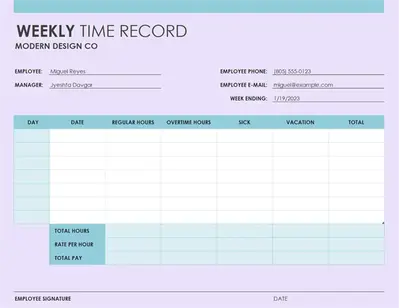
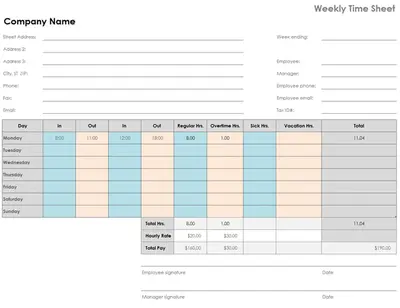
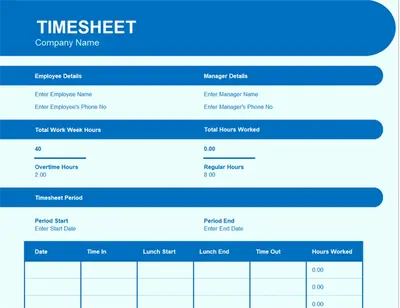
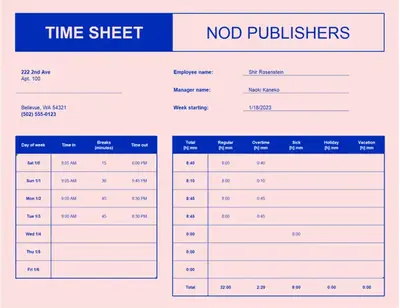
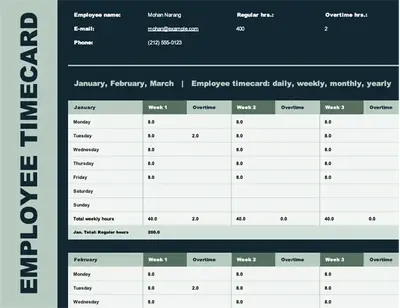
Track work hours and simplify reporting with Excel timesheet templates built for daily, weekly, or project-based use. Log hours, breaks, and overtime in a clear, consistent layout that’s easy to maintain.

Built-in Excel calculator helps keep entries consistent and accurate. Automatically total hours with easy-to-use formulas so payroll, invoices, and reports are prepared correctly.

Adjust worksheets to suit different tracking needs, including hourly, shift, or project timeframes. Keep timesheets organised and updated as schedules change.
Find customizable online timesheet templates to log daily, weekly, or monthly hours to supporte accurate payroll and client invoicing. Discover sheet examples with pre-formatted timesheet calculator formulas. Simply update the date, hours, and project names to customize.
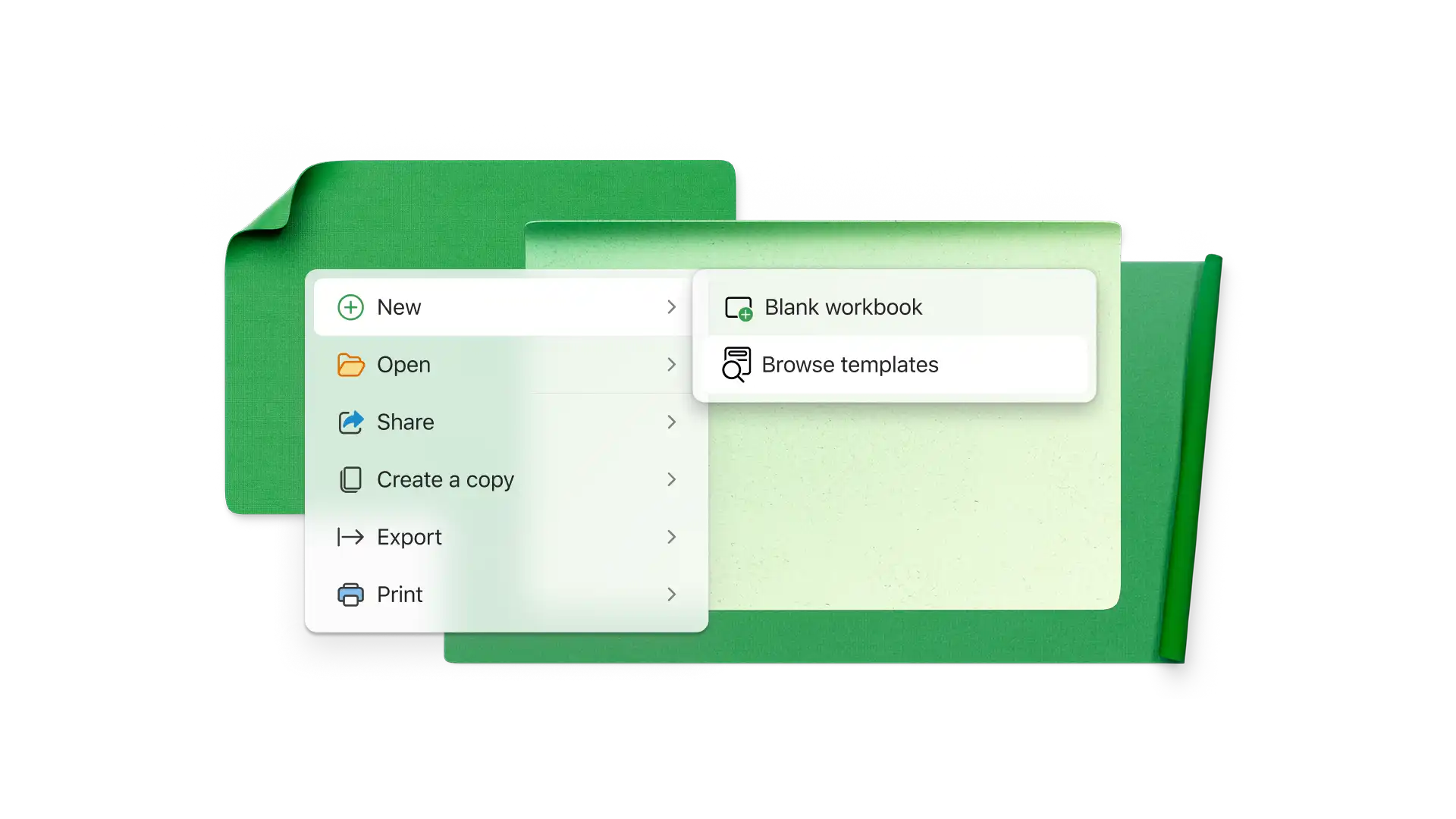
Browse timesheet templates on Excel for the web.
Choose a weekly or monthly timesheet template to start adding inputs.
Replace placeholder cell values and personalize column names with the required information.
Save, export as a PDF timesheet, or share directly via Outlook.
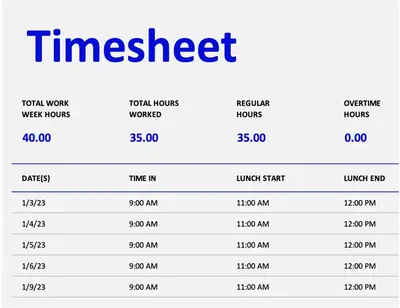
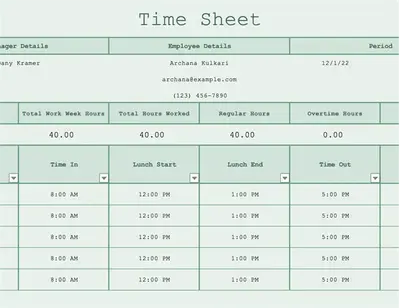
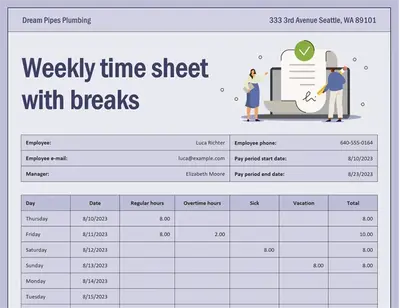
Track hours with timesheet calculator templates which keep every entry accurate and easy to report. The calculator sheet can automatically add time and subtract breaks to calculate total pay and overtime. Prepare payroll, invoices, and reports without requiring manual checks.
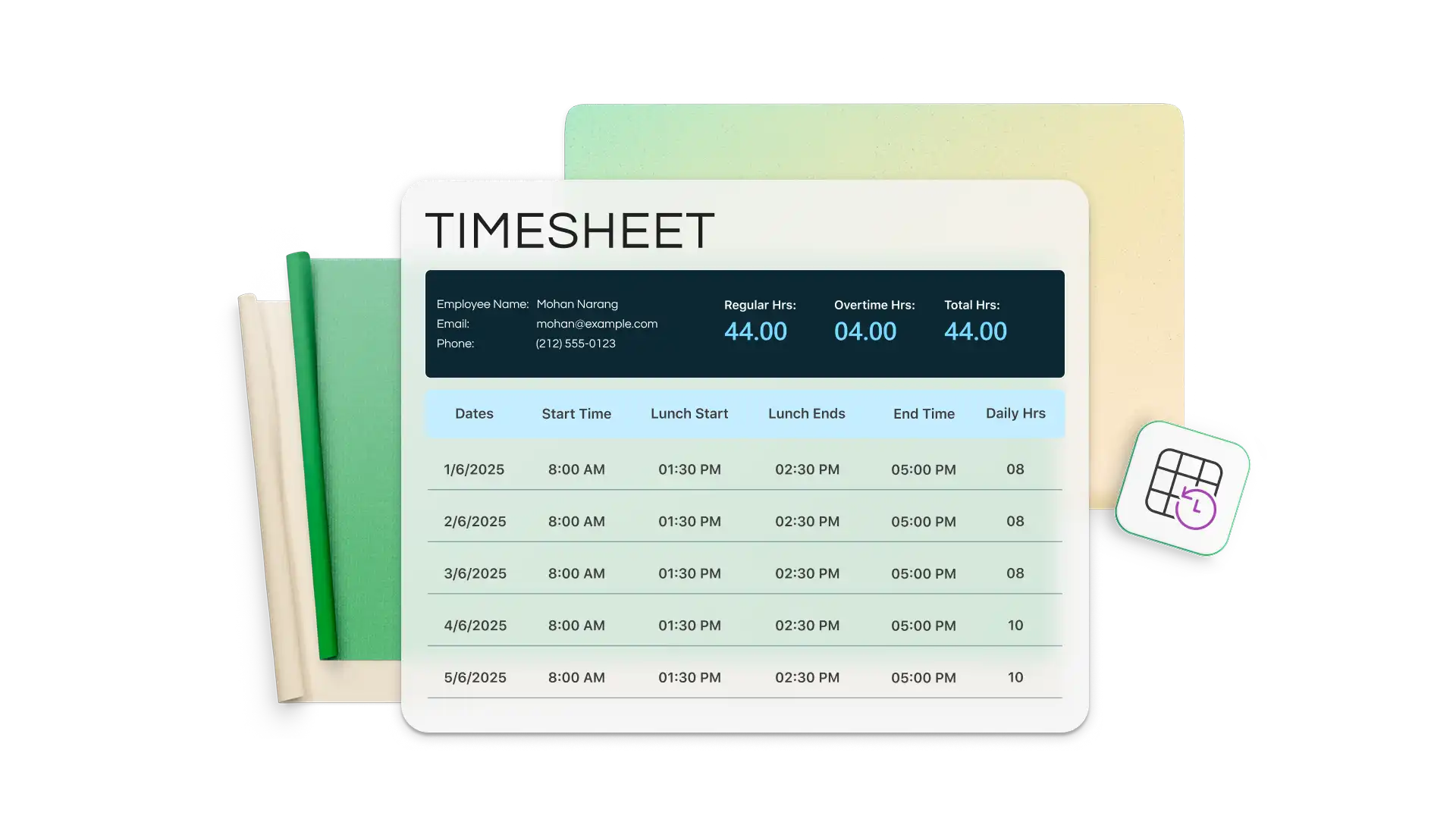
Track time over daily, weekly, monthly, and annual reporting periods with clarity using Excel timesheet templates. Align timesheets with the pay period to simplify reporting and customize it with a company header, brand logo, client name, and project details.
Review billable hours, prepare client-ready invoices, and manage project costs with reliable data. Send accurate invoices based on the hours already recorded in the timesheet calculator. Find total time by project and generate an invoice quickly.

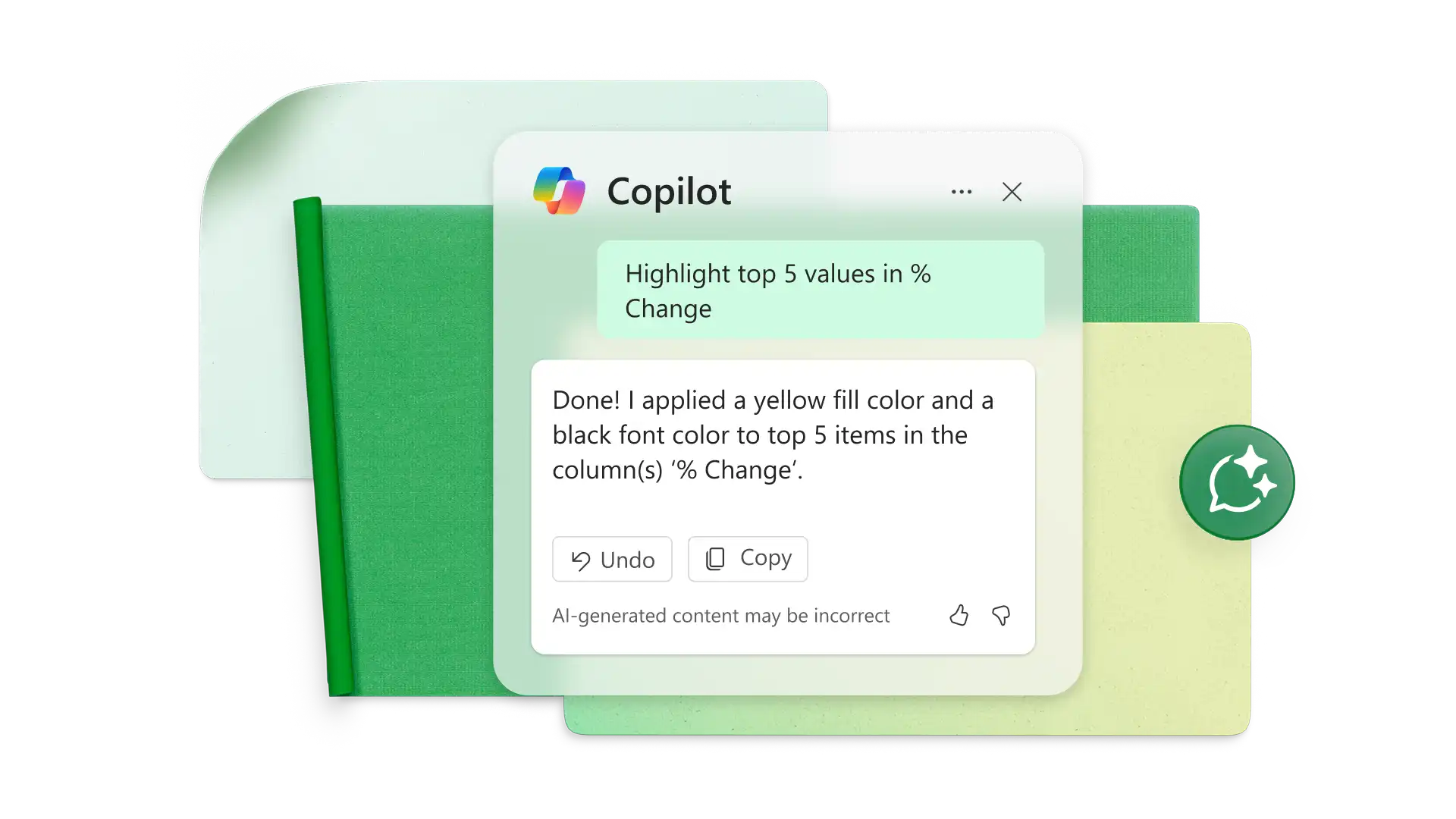
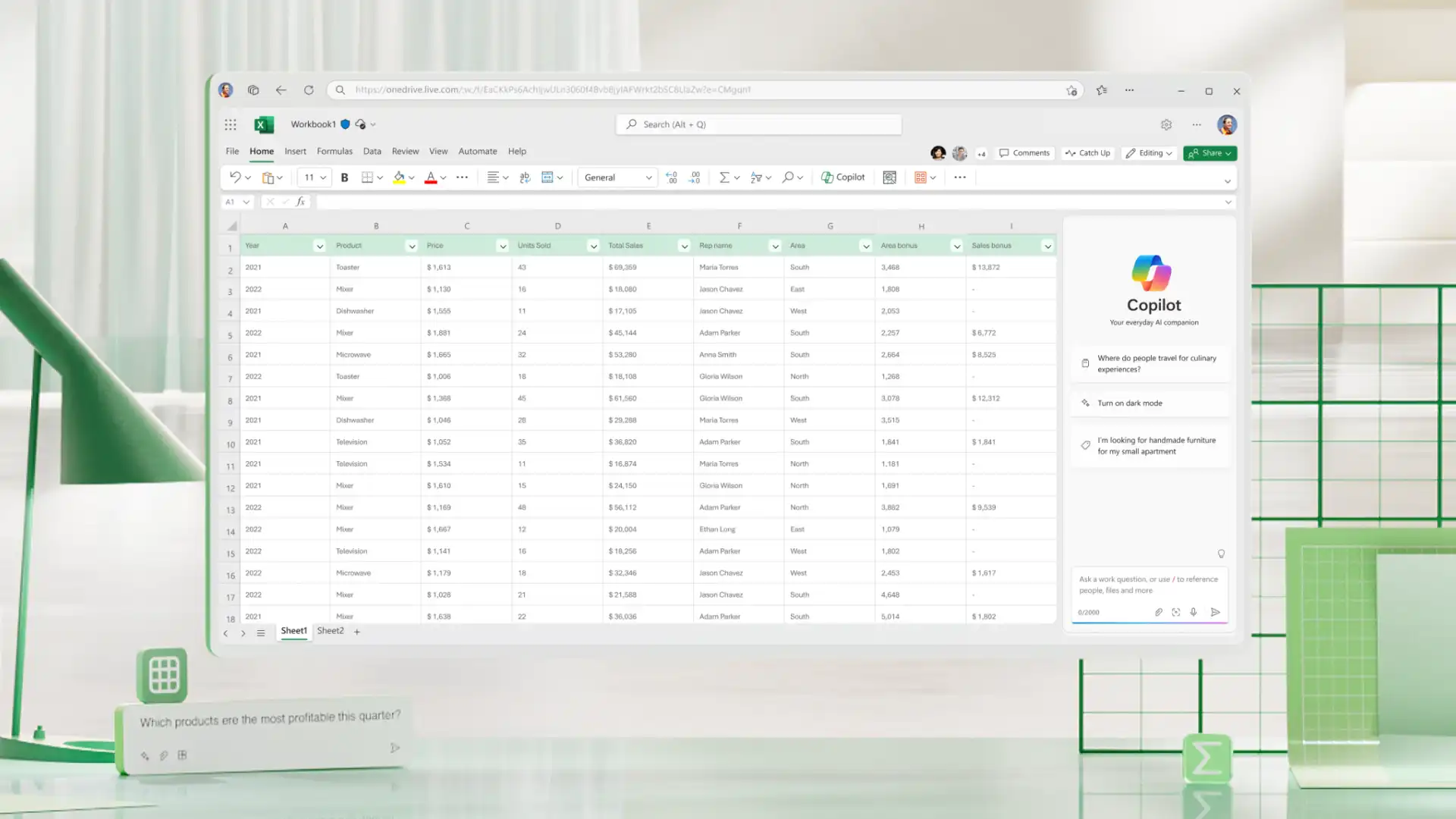
Enhance reporting with Copilot in Excel. Chat with AI to find errors like missing entries or formats before payroll, or analyze employee sheets that exceed overtime thresholds. Chat with Copilot to generate AI data visualizations to capture trends.
To calculate overtime in Excel, subtract standard working hours from total hours worked using a simple formula. For example, if anything over eight hours is overtime, use: =IF(A2>8, A2-8, 0). If working with start and end times, first calculate total hours with: =(EndTime-StartTime)*24. Then apply the overtime formula. This quickly shows only the extra hours worked, making it easy to track overtime for payroll, timesheets, or reporting. For further help, ask Copilot in Excel to generate the right formula.
To calculate hours, first make sure the input cells are in time format in Excel. Next, create equations subtracting the lunch hour and clock out time from clock in time. Multiply the resulting decimal by 24 to see the day’s work hours. For a faster solution, customize an Excel timesheet template or copy its formulas.
If the timesheet counts hours numerically, 15 minutes is equal to 0.25 hours. In this case, 0.5 hours is 30 minutes and 0.75 hours is 45 minutes. Simply format the cells to accept time inputs like 9:00 AM and 5:00 PM. in the Excel spreadsheet.
Start with a monthly Excel timesheet template or copy a weekly template to include five weeks per spreadsheet. When building a monthly timesheet from scratch, set up columns for the date, time in, time out, lunch, and total hours. Create formulas to total each day’s working hours along with the monthly total. Pair timesheets with a monthly schedule template to plan confidently.
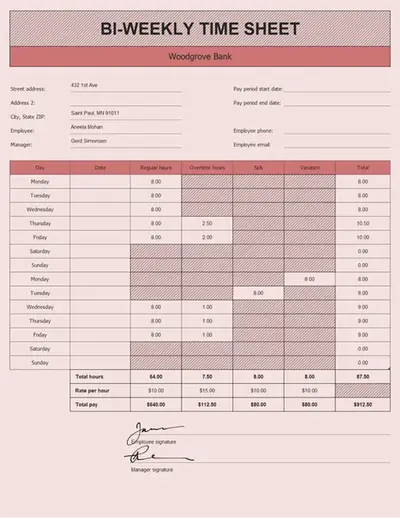
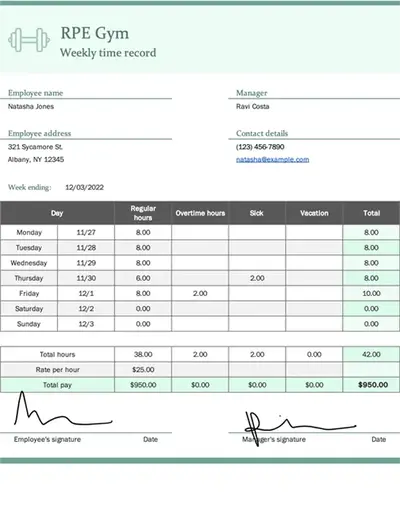
Weekly timesheets track hours worked over a seven day period, making them ideal for closely monitoring daily hours, overtime, and short-term schedules. Biweekly timesheets cover a two week period, reducing admin time and aligning with payroll cycles that run every two weeks. Weekly formats offer more frequent visibility, while biweekly formats are better for streamlined reporting and payroll processing.
Timesheets can be easily shared with a team by using a secure online spreadsheet in Excel for the web. Share a link and set permissions to view or edit, so team members can update hours, review entries, or track progress in real time. This can be paired with attendance sheet templates.