Eight ways to create and analyze an Excel spreadsheet with AI
Learn how Copilot in Excel can suggest formulas, help clean data, explain trends...

Generate formulas, analyze data, and build spreadsheet workflows using Copilot in Microsoft Excel.


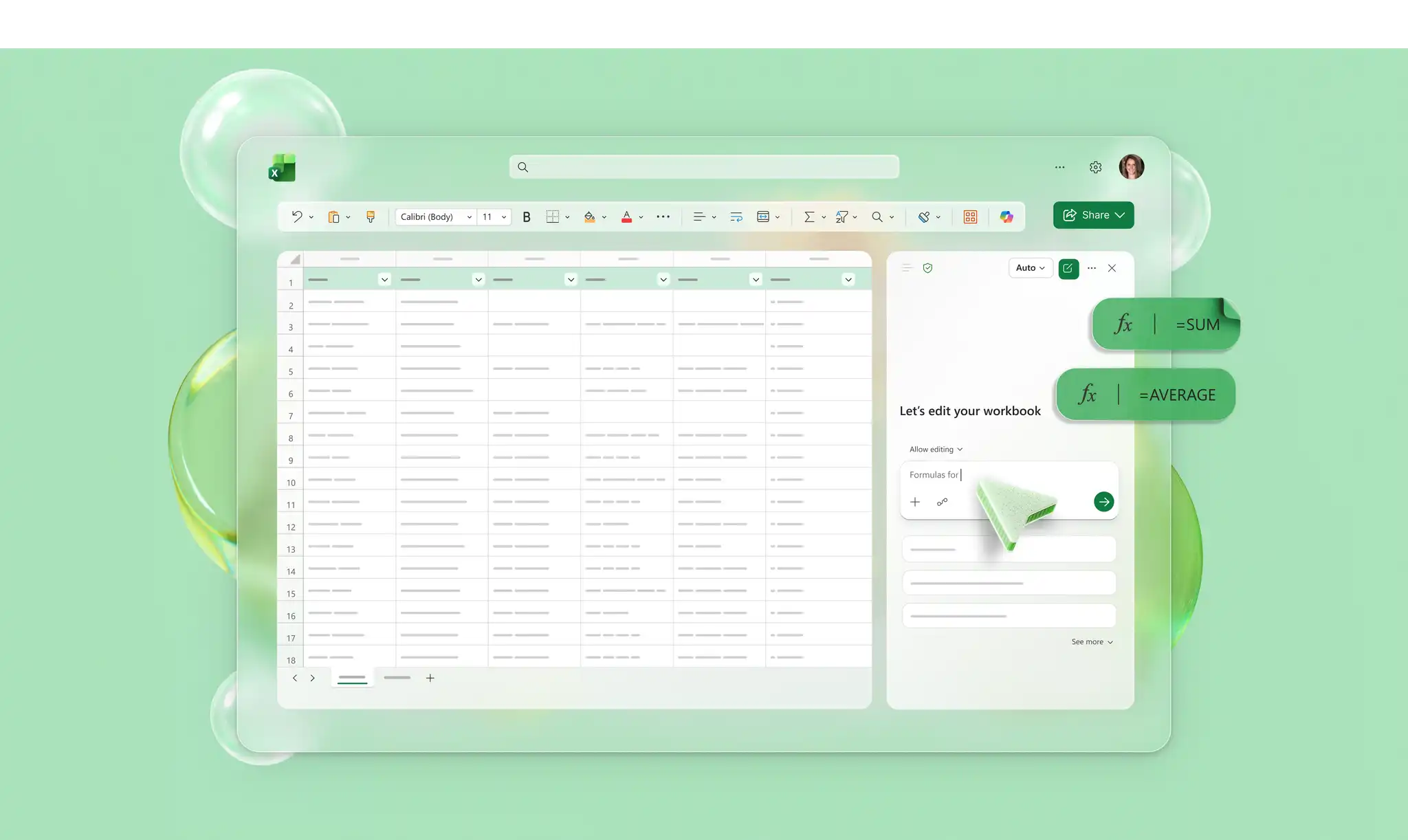
Manage sheets efficiently, with no need to memorize formulas or syntax. Chat with Copilot to explain spreadsheet needs in simple phrases. Get instant formula suggestions to apply, or let Copilot build workflows to create dashboards, reports, and graphs without manual setup.

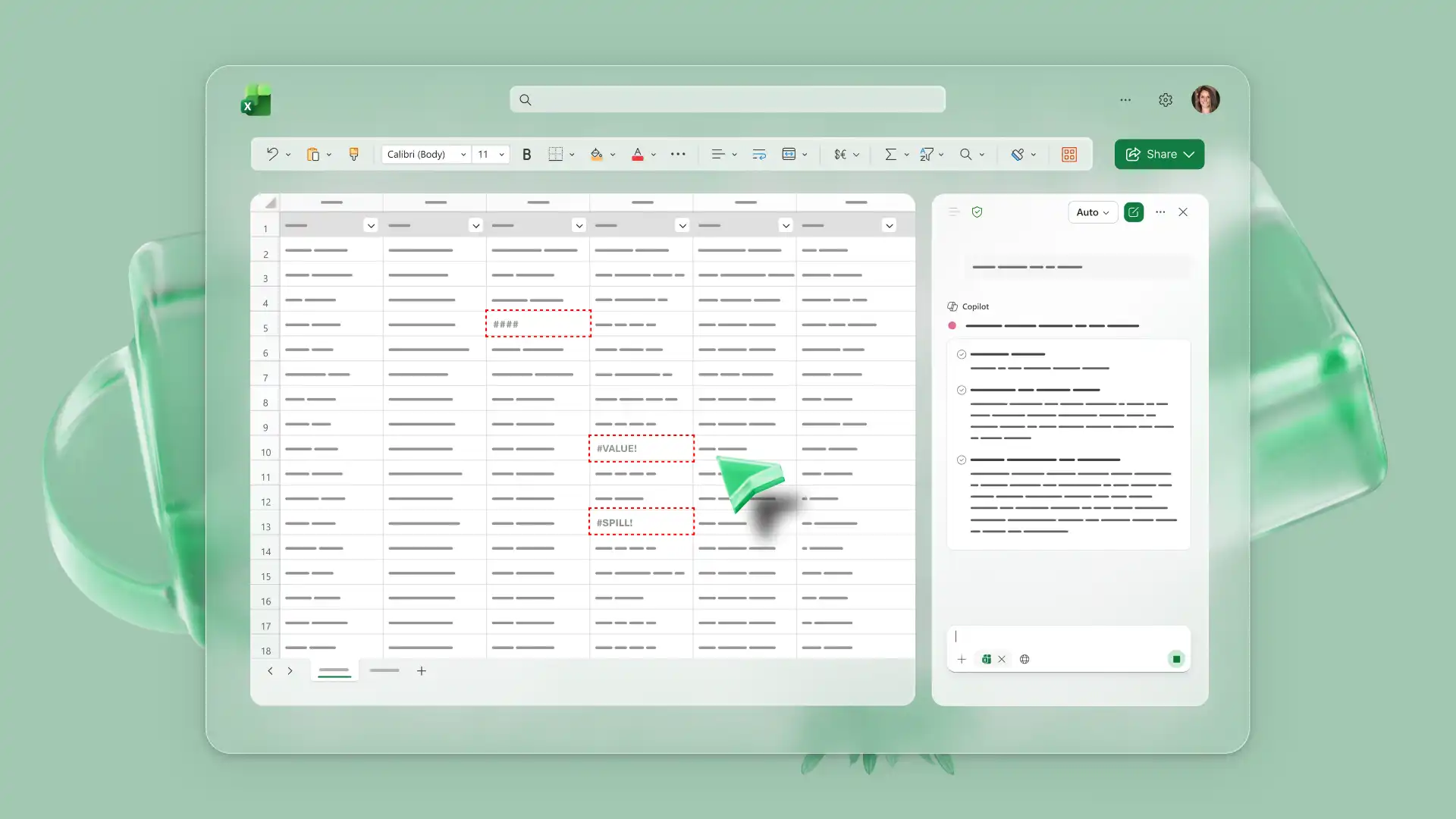
Reduce manual reviews by asking Copilot to interpret spreadsheet data, identify Excel errors, and present findings. Compare changes in business expenses, or highlight trends in inventories using AI. Act on trends and make decisions by clarifying the meaning with Copilot.

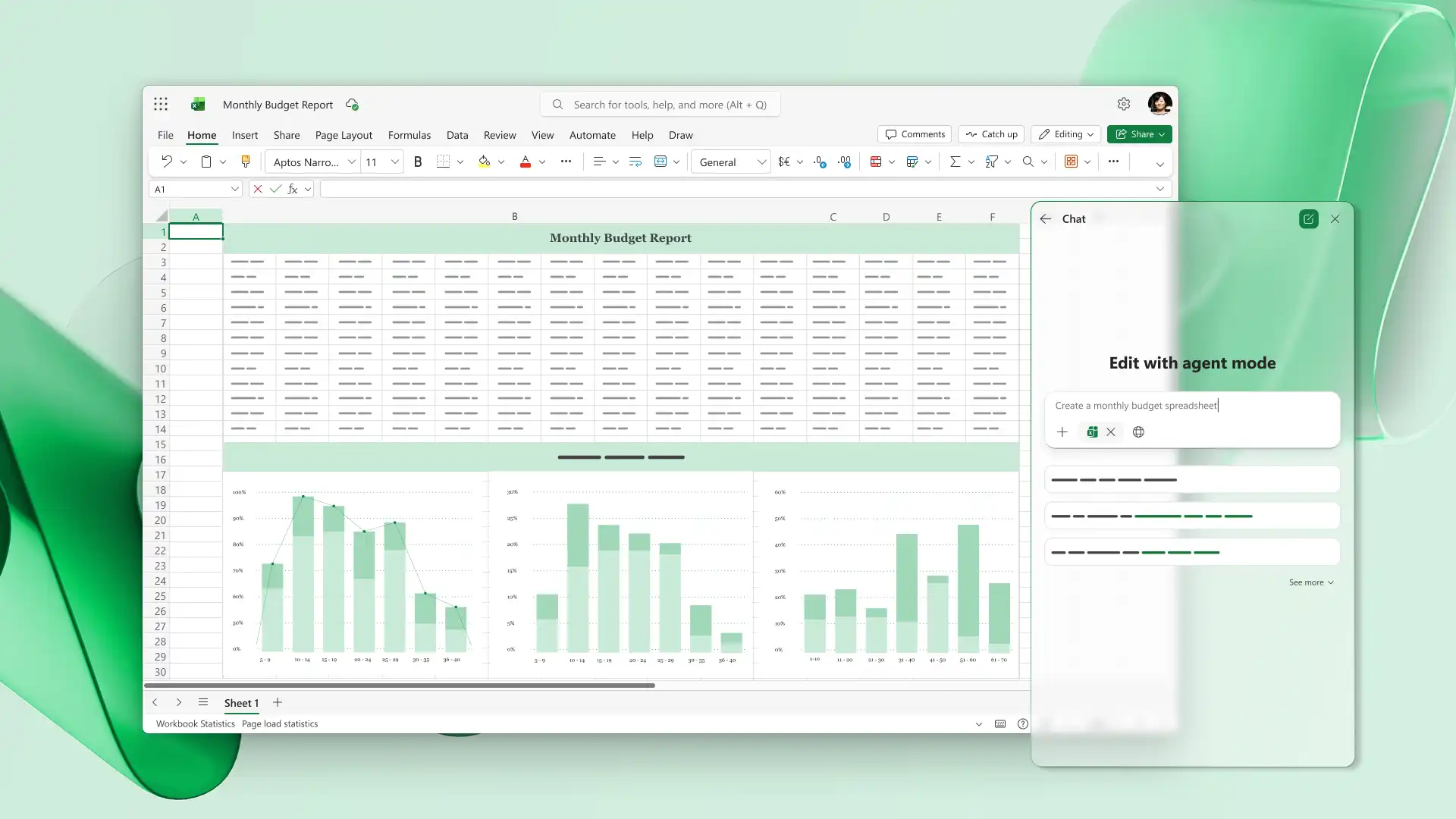
Create and save editable workbooks to simplify recurring tasks and share with teams for consistency. Chat with Copilot to create templates like monthly budgets, agency invoices, and project trackers with formulas, lists, and themes for a professional look.
watch and learn
Clean up data, build formulas, or turn numbers into visual charts and graphs with Copilot in Excel.
Transform messy data and tables into clean data sets ready for analysis using AI. Import data like CSV files and ask Copilot to identify duplicates and clean up formatting using the chat, or use the Clean Data button to receive suggestions. Review fixes and apply changes to build a strong foundation for any spreadsheet.
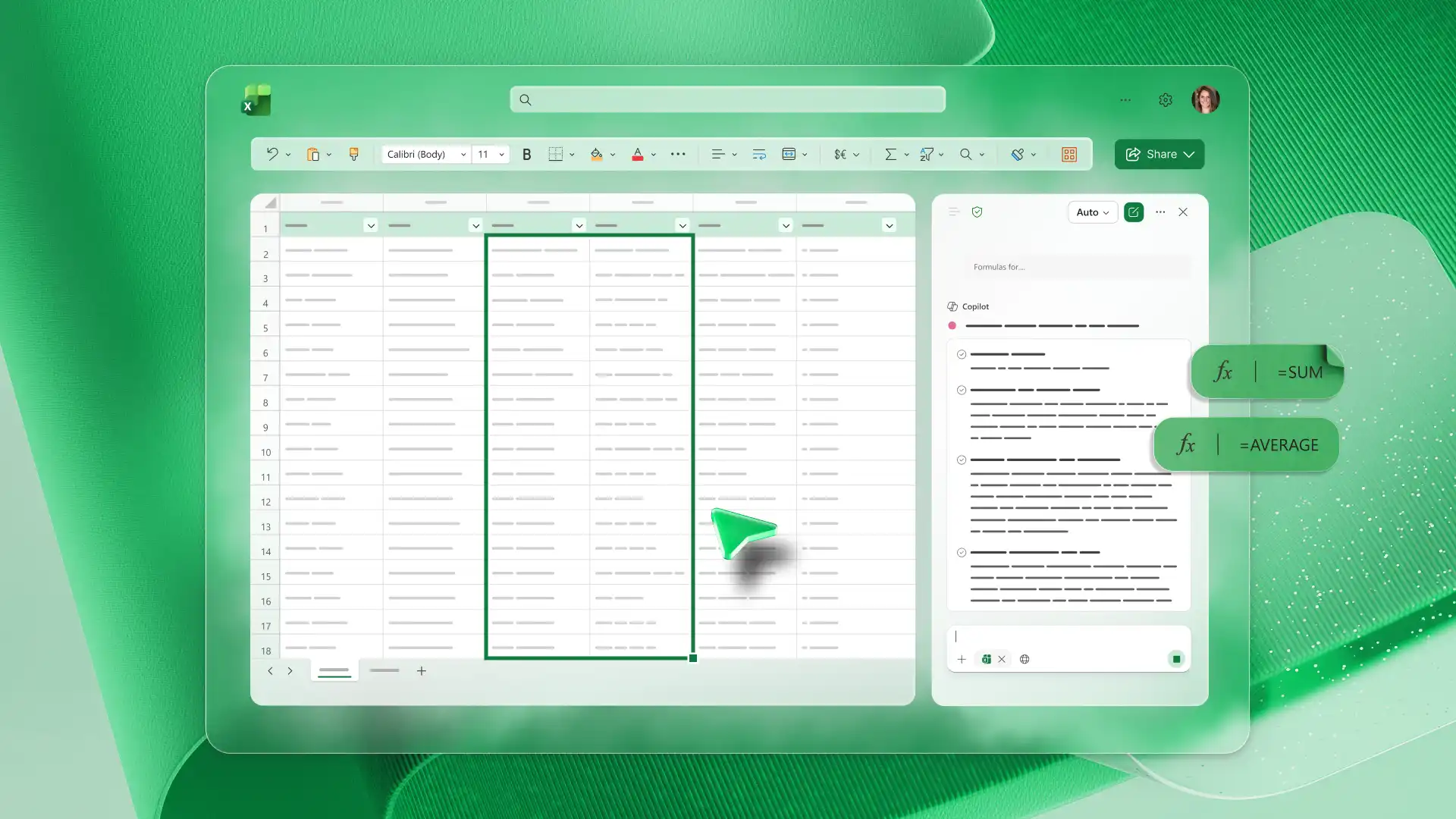
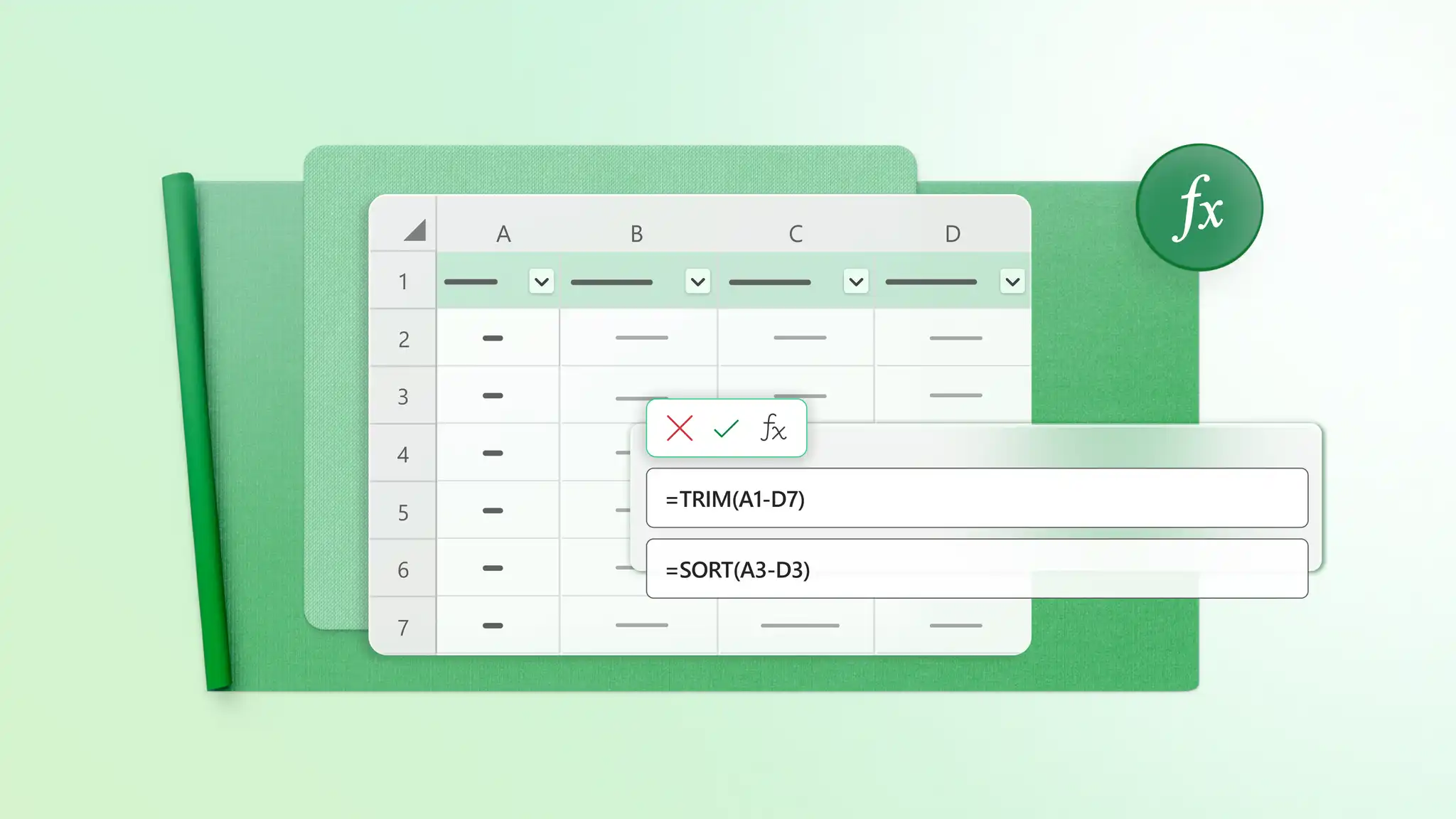
Describe the dashboard, calculator, or report that’s needed, and Copilot can generate a starting point suitable for both beginners and advanced users. Receive the right formula suggestions that suit the dataset to complete essential functions, lookups, and even build tools like ROI calculators using the chat.
Identify useful insights from simple and advanced spreadsheets. AI completes complex calculations to uncover trends in business sheets, or find shortfalls in personal budgets and forecasts. Copilot can also assess sentiment in text from surveys and reviews, finding informative patterns. Follow up with a request for a summary to share widely in meetings and via email.
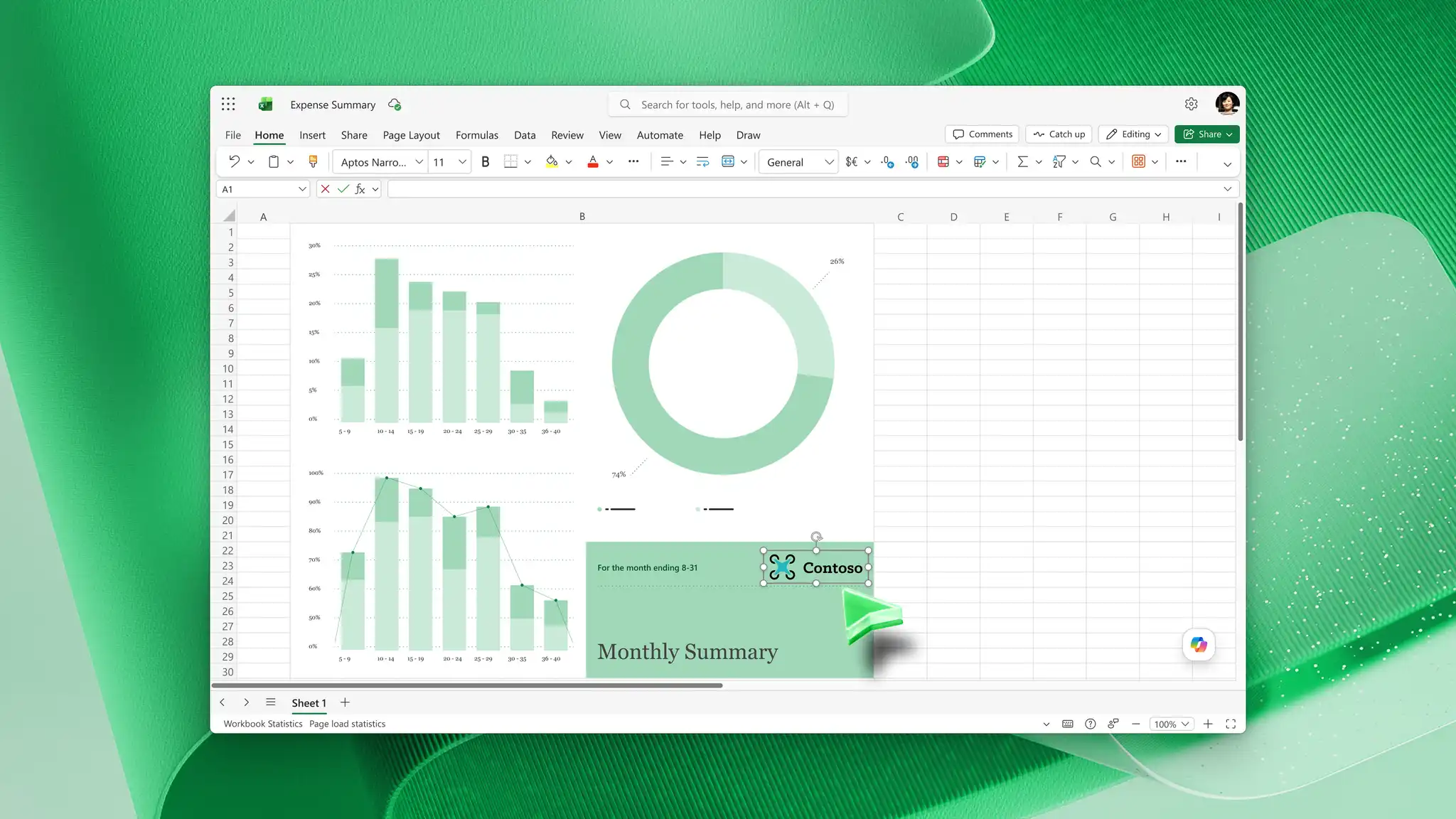
Transform datasets into clear visualizations with AI. Chat with Copilot to discover suggestions on how to present data best, like bar charts to compare values, timelines to track projects, or graphs to highlight trends. Share findings using well-designed charts to impress viewers with charts and visuals that tell a story.
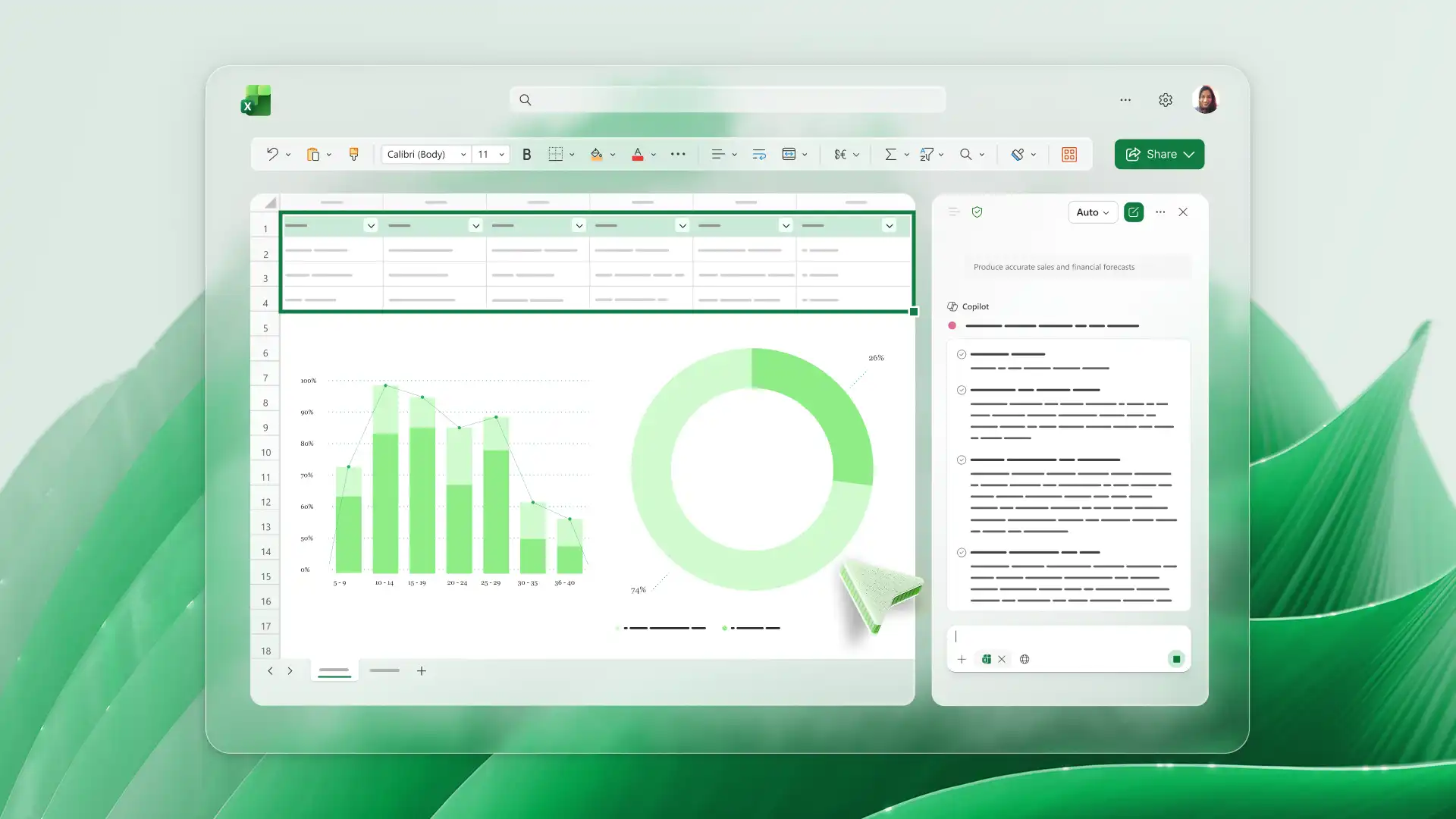
Create future projections for a product, service, or project to support informed decisions, whether it’s related to inventory orders or project management. Chat with Copilot to highlight potential outcomes based on the data, and track success in sales and marketing campaigns. Build automated weekly or monthly dashboards for consistent reporting.
Improve visual clarity using Copilot to clean up tables or create structured columns and headers, adding polish to everyday reports and sheets. Prepare report data by asking AI to highlight top values using conditional formatting, or standardize date and currency formats in large datasets for business spreadsheets.
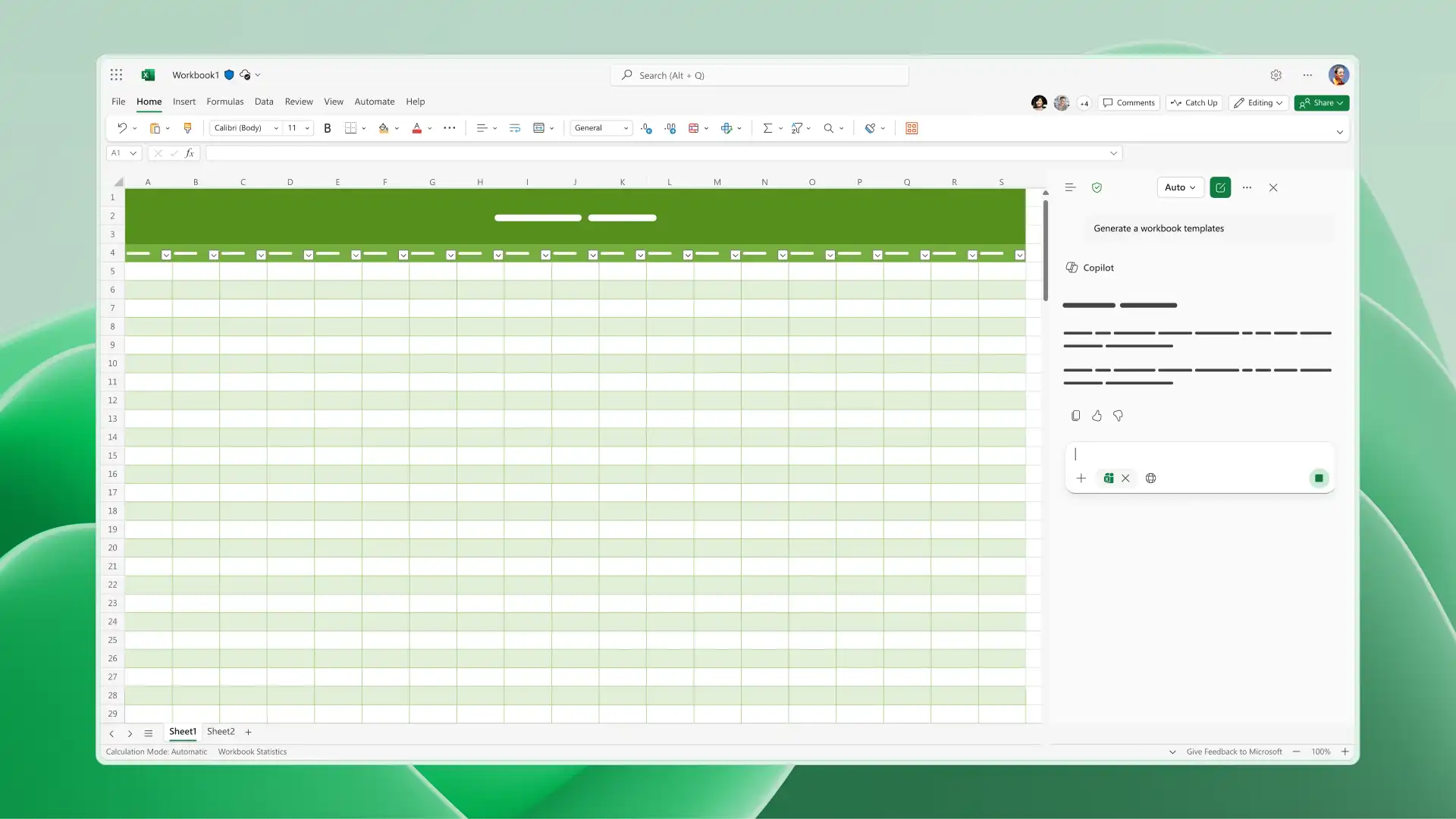
Invite collaborators to edit workbooks in real time, using cell protection to safeguard values and comments to share input. When ready, print sheets, download as a PDF or share access with password-protected secure online links. Reduce manual setup for future work by saving spreadsheets as templates to reuse with new data.
Open a new spreadsheet in Excel for the web and enable the Copilot icon.
Describe the spreadsheet generation or analysis question in the chat using simple phrases, referencing cell ranges if applicable.
Apply Copilot suggestions from the chat, or review AI edits made directly in the spreadsheet.
Chat with Copilot to clean up data, refine formatting, or generate an analysis.
Save and share the Excel spreadsheet using secure OneDrive links, or attach as PDF to email.
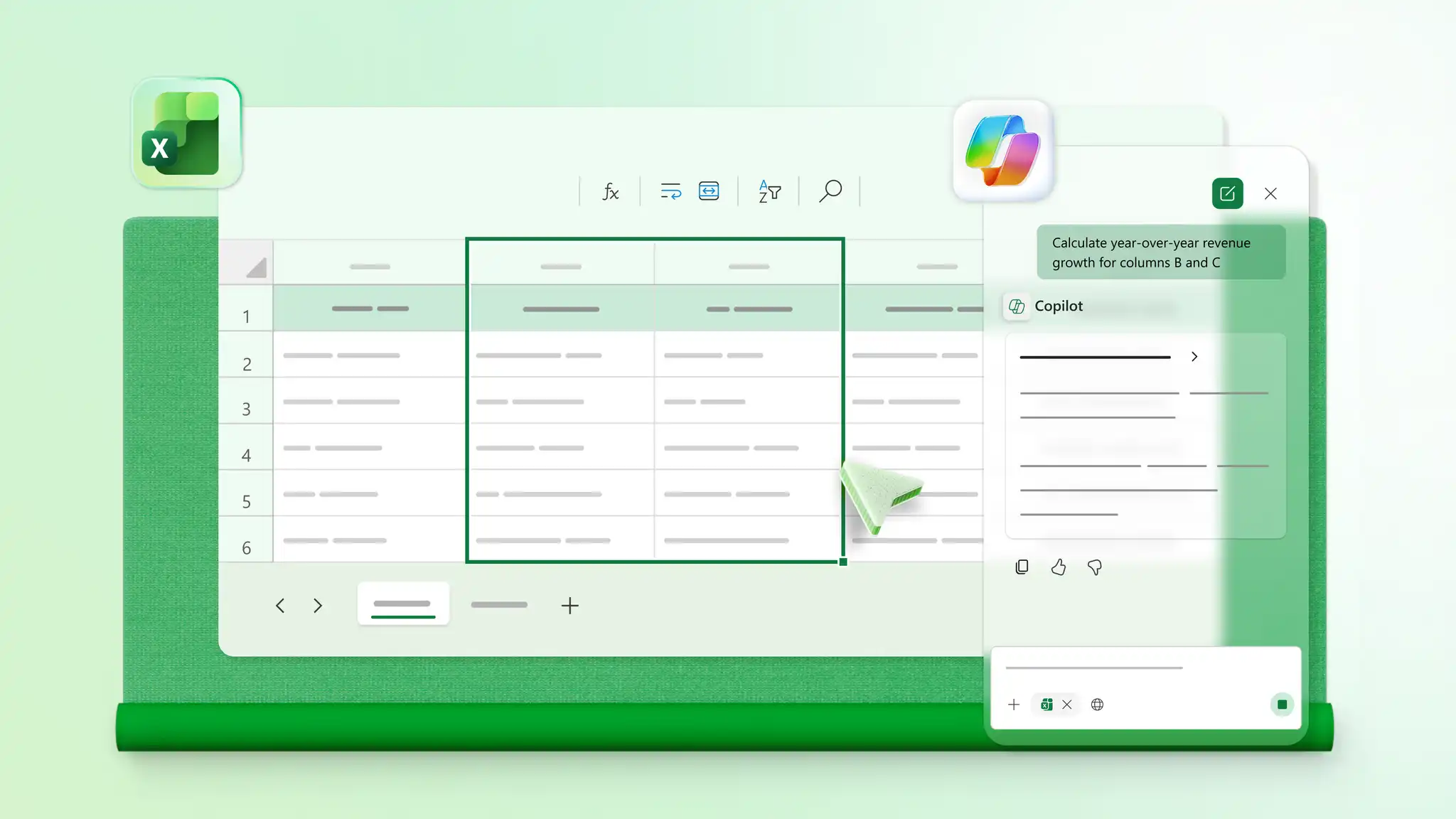
Enable Copilot in Excel for the web or Excel desktop app to start chatting with the AI spreadsheet assistant. Use simple prompts to explain goals and Copilot will complete the tasks within the workbook, showing its process, assumptions, and formulas along the way.
Editing with Copilot in Excel requires either a Microsoft 365 Personal or Family subscription (with an AI credits plan), a Microsoft 365 Premium subscription, or a commercial Microsoft 365 Copilot subscription.
Copilot in Excel includes a range of supported models, enabling formula generation, data analysis, and refinement through natural language prompts in chat. Copilot automatically selects the model best suited to the task for an effortless spreadsheet building experience.
Copilot provides fully editable output inside standard Excel spreadsheets. Users can modify, undo, or delete output with complete control. Additionally, users can ask AI to make changes to its output, like adding a trend line to a graph or running a scenario analysis with a different parameter.