30 Excel formulas and functions with examples and Copilot prompts
Explore 30 Excel formulas for cleaning data, calculations, lookups, and analysis...

Generate the right formula to calculate results and analyze sheets using Copilot in Microsoft Excel.

Clean up sheets to build a reliable foundation for formulas. Identify Excel errors, missing entries, or inconsistent formats with AI, then review suggestions on how to organize the data.

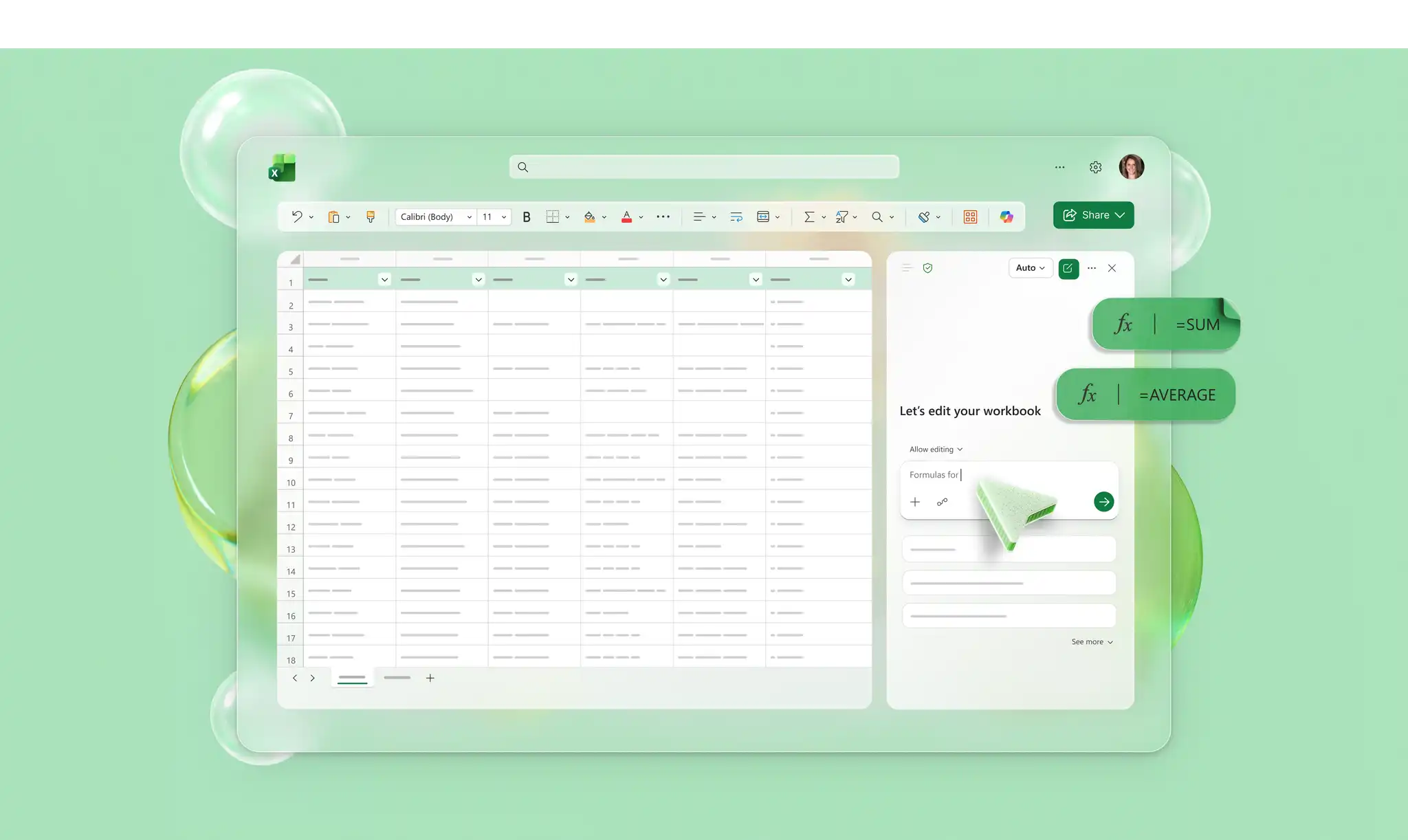
Apply formulas without writing functions manually or learning syntax. Describe the calculation needed in Copilot chat and get recommended formulas based on the dataset.

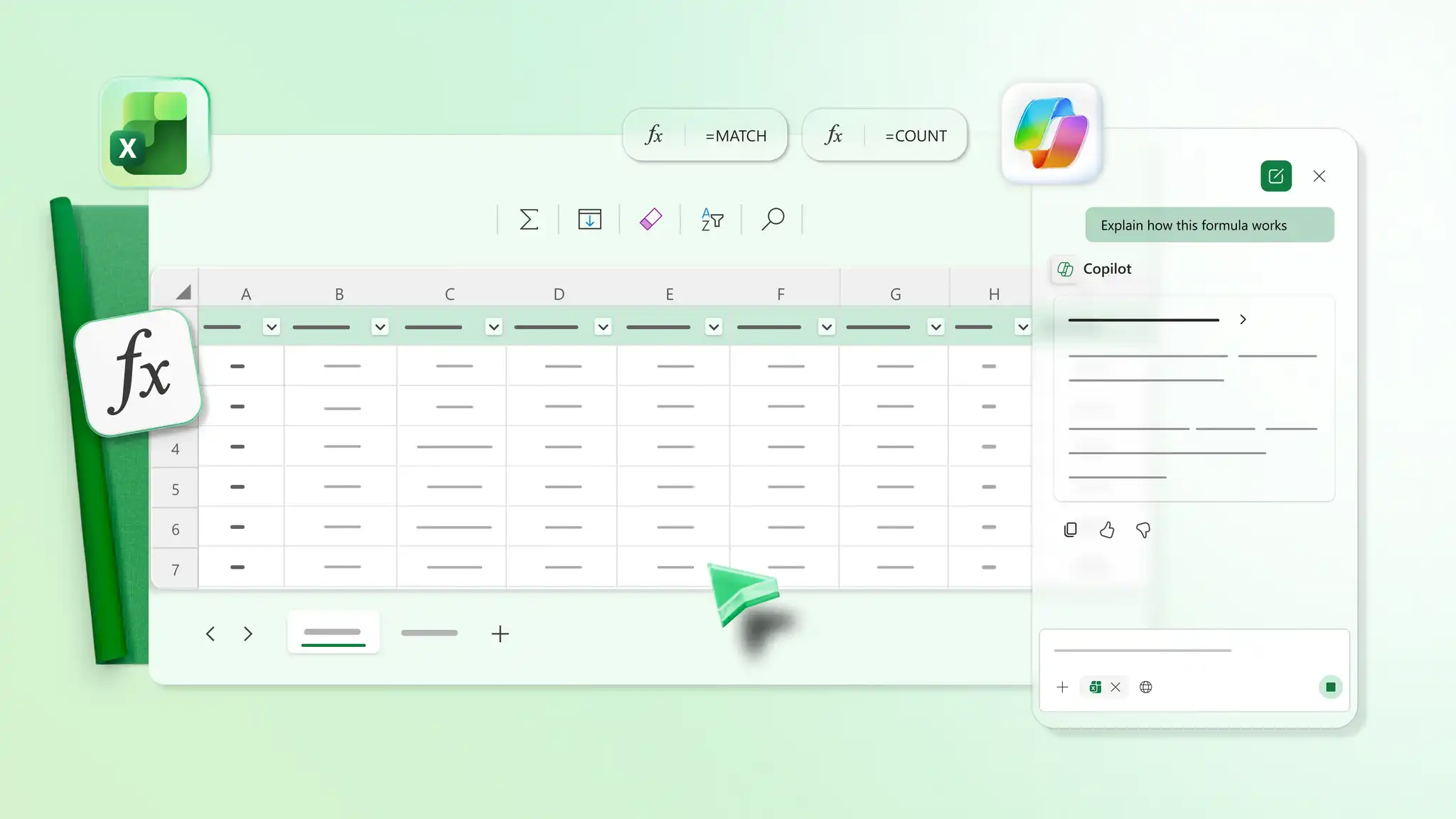
Simplify the logic of a sheet. Ask Copilot how a formula works step-by-step and get tips on how to improve it. Adjust calculations based on the feedback to keep spreadsheets easy to maintain.

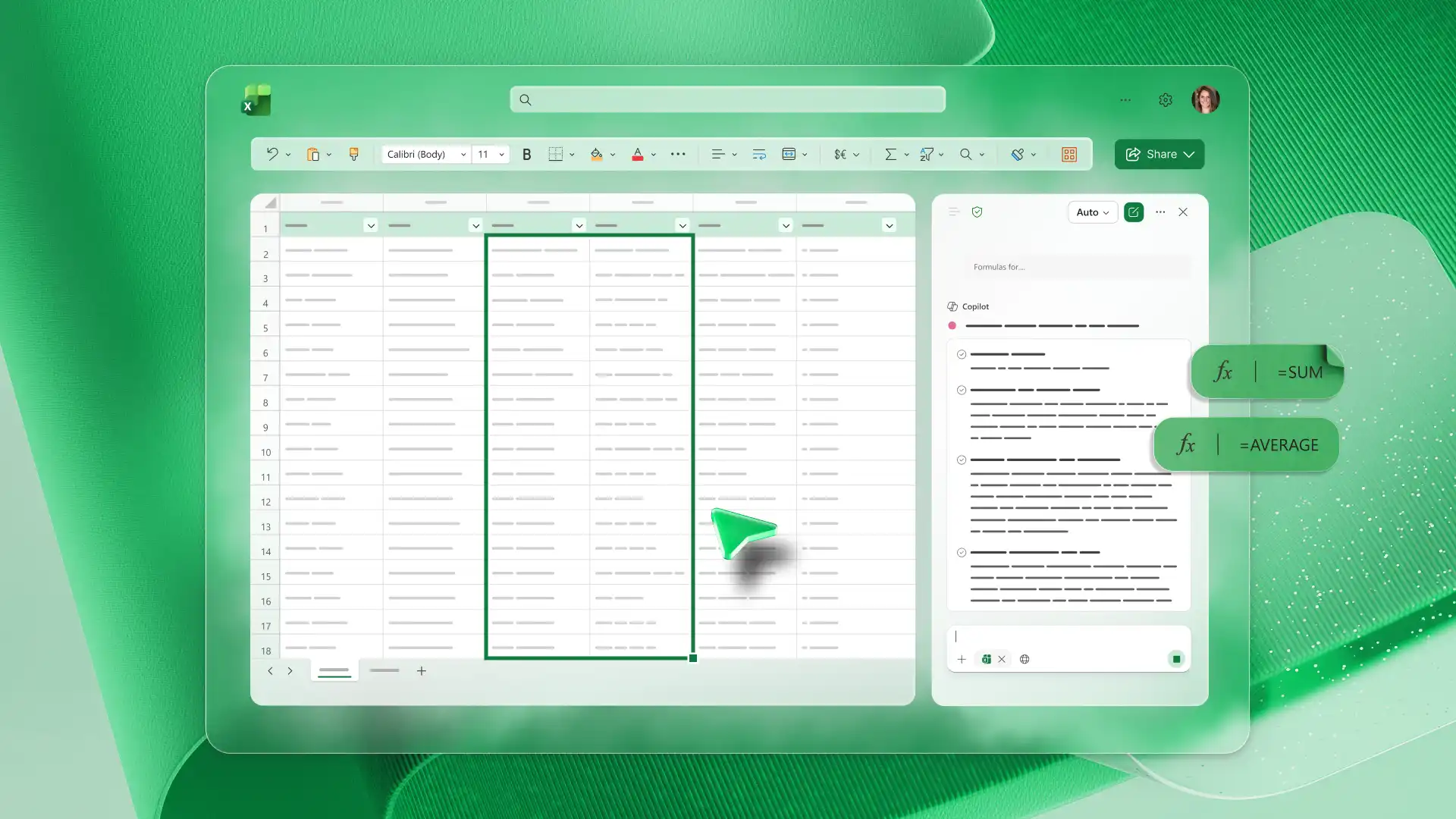
Prepare data for accurate calculations by standardizing formats with Copilot in Excel. Ask AI to flag inconsistencies in dates, numbers, or category labels that may cause errors in formulas. Clean up the dataset to reduce errors when working with any sheet, from product orders to expense trackers.
Identify the right calculation needed before adding formulas to a spreadsheet. Ask Copilot to interpret questions about totals, averages, or comparisons to learn more. Apply suggestions to sales reports or business budgets where calculations need to be clear before execution.
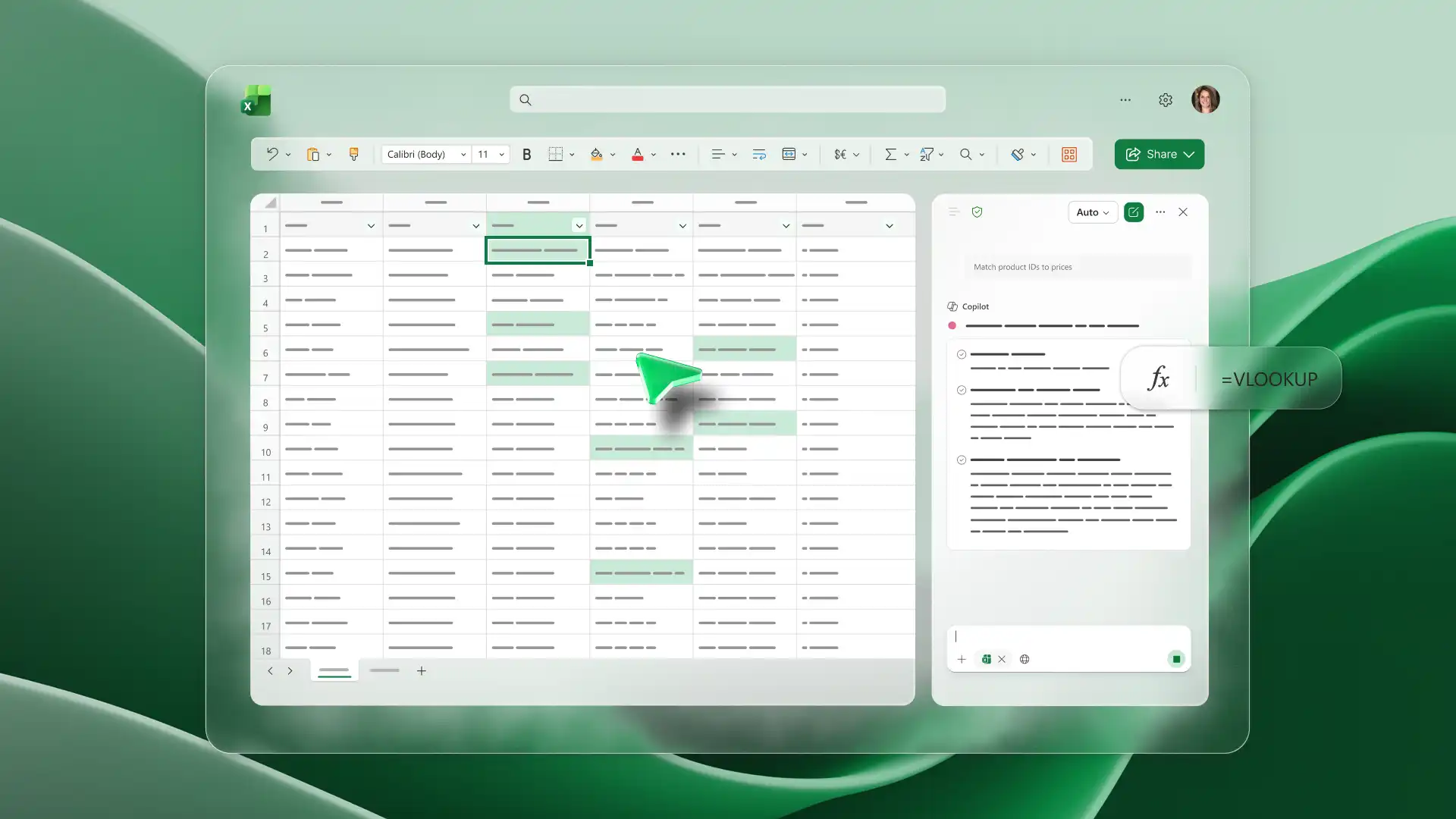
Work across datasets without manually adding formulas like VLOOKUP. Ask Copilot to identify shared values such as product IDs, customer names, or category codes and suggest how to structure the match. Use spreadsheets to manage sales, inventory, or project data across multiple sheets.
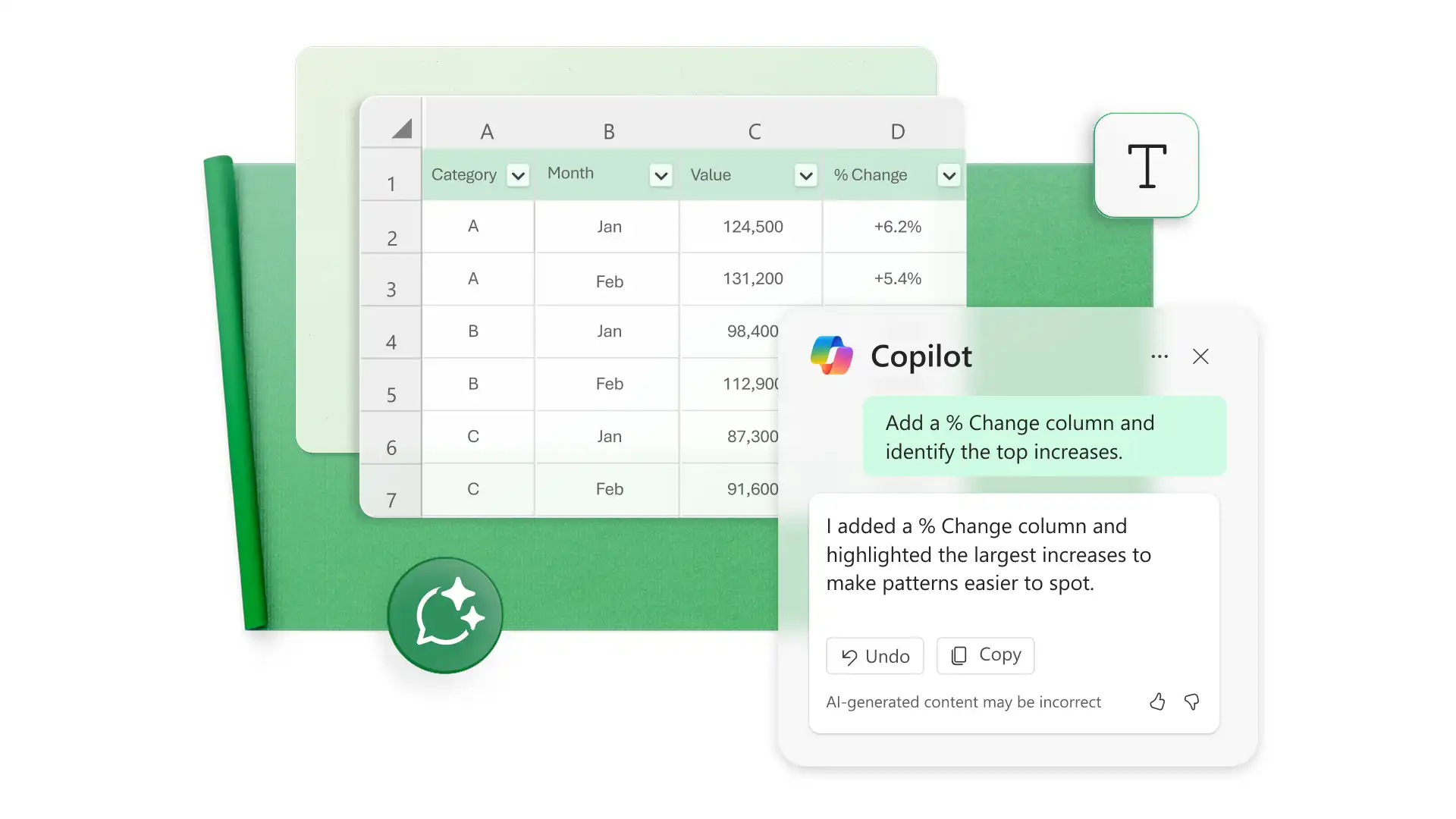
Use AI to compare values across time, categories, or datasets to understand differences. Apply suggested formulas for percentage growth and variance to quantify trends easily. Calculate month-over-month balance sheets or find gaps in a household budget using Copilot.
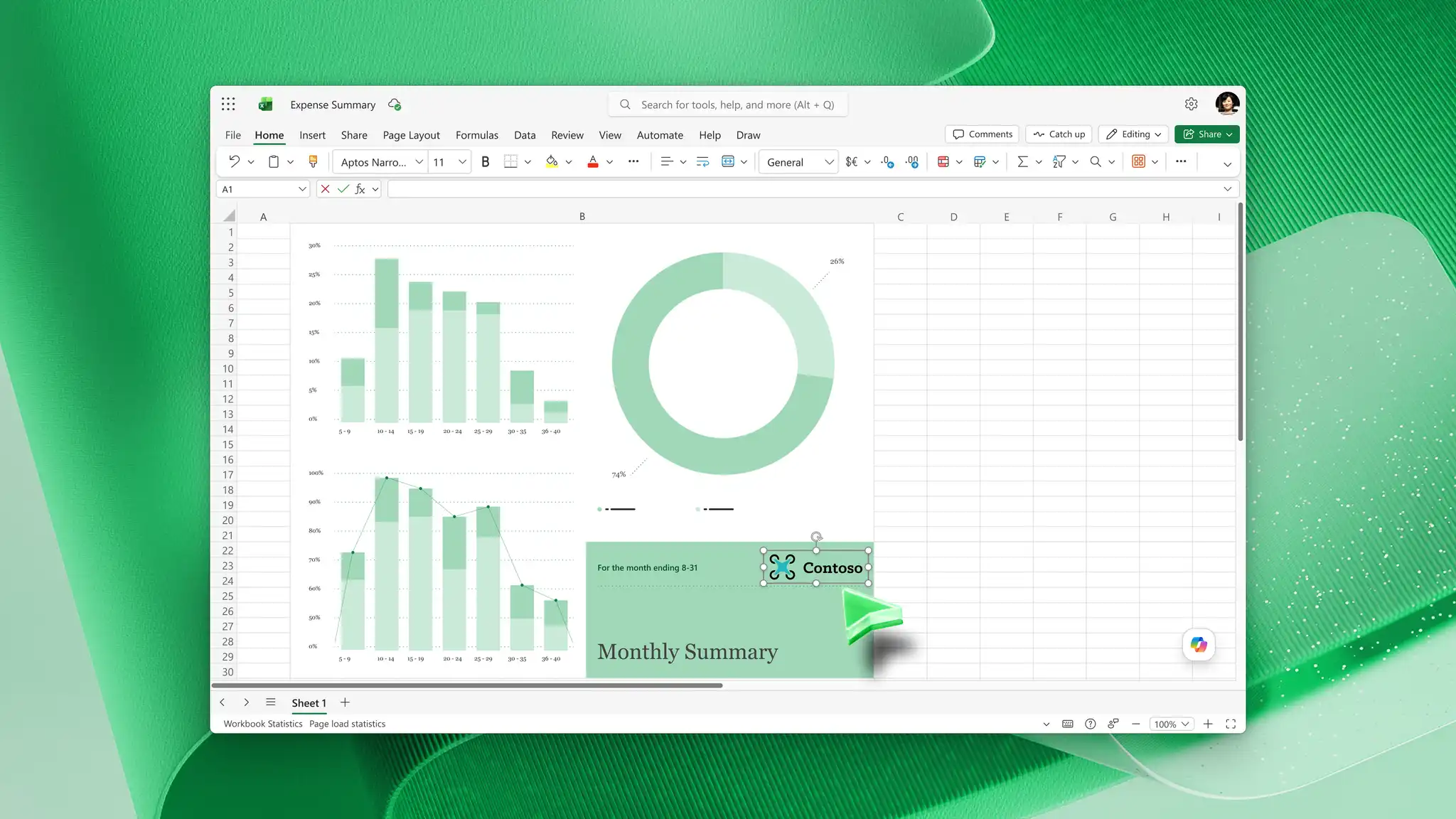
Discover the formulas behind dashboard metrics like revenue by region or growth by quarter. Use Copilot to structure calculations that group results by time, segment, or category. Prepare dashboards that sales, marketing, and operations teams can review and act on, with a mix of tables and graphs.
Start a new spreadsheet or upload an Excel or PDF dataset on Excel for the web.
Describe the calculation needed in Copilot chat, such as “calculate total revenue by region”.
Review the suggested formula and check that the references and logic match the dataset.
Apply the formula and expand it across rows or columns as needed.

Access Copilot in Microsoft Excel by opening the app and locating the Copilot icon. Sign in with a Microsoft 365 account that includes Copilot features.
Copilot can suggest formulas for totals, averages, conditional logic, lookups, and trend calculations. Describe the calculation needed in the chat, and Copilot can recommend a formula based on the dataset and structure.
AI can help identify issues such as incorrect references or logic errors in formulas and suggest ways to improve them. Describe the problem in the chat, and Copilot can recommend adjustments to fix the error for consideration.