Convert PDFs into editable spreadsheets directly in Microsoft Excel in a single step with AI, with no additional tools required. Copilot in Excel can help convert files securely and reduce manual cleanups to start data analysis sooner.
AI goes beyond just converting file formats, it can help identify tables and organize information into spreadsheet-ready structures. Static PDFs like invoices, statements, and reports become easier to edit and apply formulas to, resulting in quicker calculations and smoother editing. Once the data is in Excel, continue to refine and analyze spreadsheets with assistance from AI.
Learn how to convert PDFs to spreadsheets in Excel, useful tips for high-quality conversions, and ways AI helps review data to improve spreadsheets.
When to use AI PDF to Excel conversion
From invoices to sales reports, reusing a PDF as a spreadsheet has many advantages. Create clean spreadsheets by recognizing the best opportunities to utilize AI conversion tools in Excel, outlined below.
Extract tables or structured information: extract tables from PDFs and edit them directly in Excel to easily update dashboards, stock levels, or employee timesheets.
Reduce manual clean up: keep re-formatting to a minimum when organizing personnel information, client details, or transaction records.
Prepare spreadsheets faster: save time on collating and organizing data when editing invoices and sales report PDFs for tax filing or recordkeeping.
Note: always review data after converting, especially with large datasets, to ensure only the correct values reach internal or external stakeholders.
What makes a PDF compatible with Copilot in Excel?
Not all PDFs convert the same way, so keeping a few compatibility considerations can help ensure a file converts successfully and maintains the original data structure in Excel. AI can detect certain elements to pull data from while converting a PDF, explained below.
Structured tables: PDFs with well-defined tables have a higher chance of clean conversion, making it easier to rearrange data in Excel.
Defined rows and columns: when data is arranged in dedicated rows and columns with labels, AI can interpret it for easier analysis.
Note that conversion can have errors if:
PDFs are scanned or low-quality: choose text-based PDFs as they tend to be the more reliable option for producing spreadsheets from a document.
Files are damaged, restricted, or complex: password-protected, corrupted, or heavily formatted files can affect structure and data completeness, increasing file upload errors.
How to convert PDF to Excel spreadsheet
Converting a PDF to Excel spreadsheet using Copilot is an easy way to edit, analyze, and save data from a single tool. Follow the steps below to convert a PDF into an editable spreadsheet in Excel.
Create a new workbook in Excel for the web and start a chat with Copilot.
Attach a PDF document using the plus icon within the chat, then ask Copilot to turn the PDF into an Excel spreadsheet.
Copilot extracts information from the PDF to build an editable Excel spreadsheet. AI arranges data within rows and columns with section headings and information, depending on the content of the PDF.
Review the newly created spreadsheet layout before applying formulas or editing values.
Use AI to find relevant formulas, analyze data, or summarize data depending on what the required task entails.
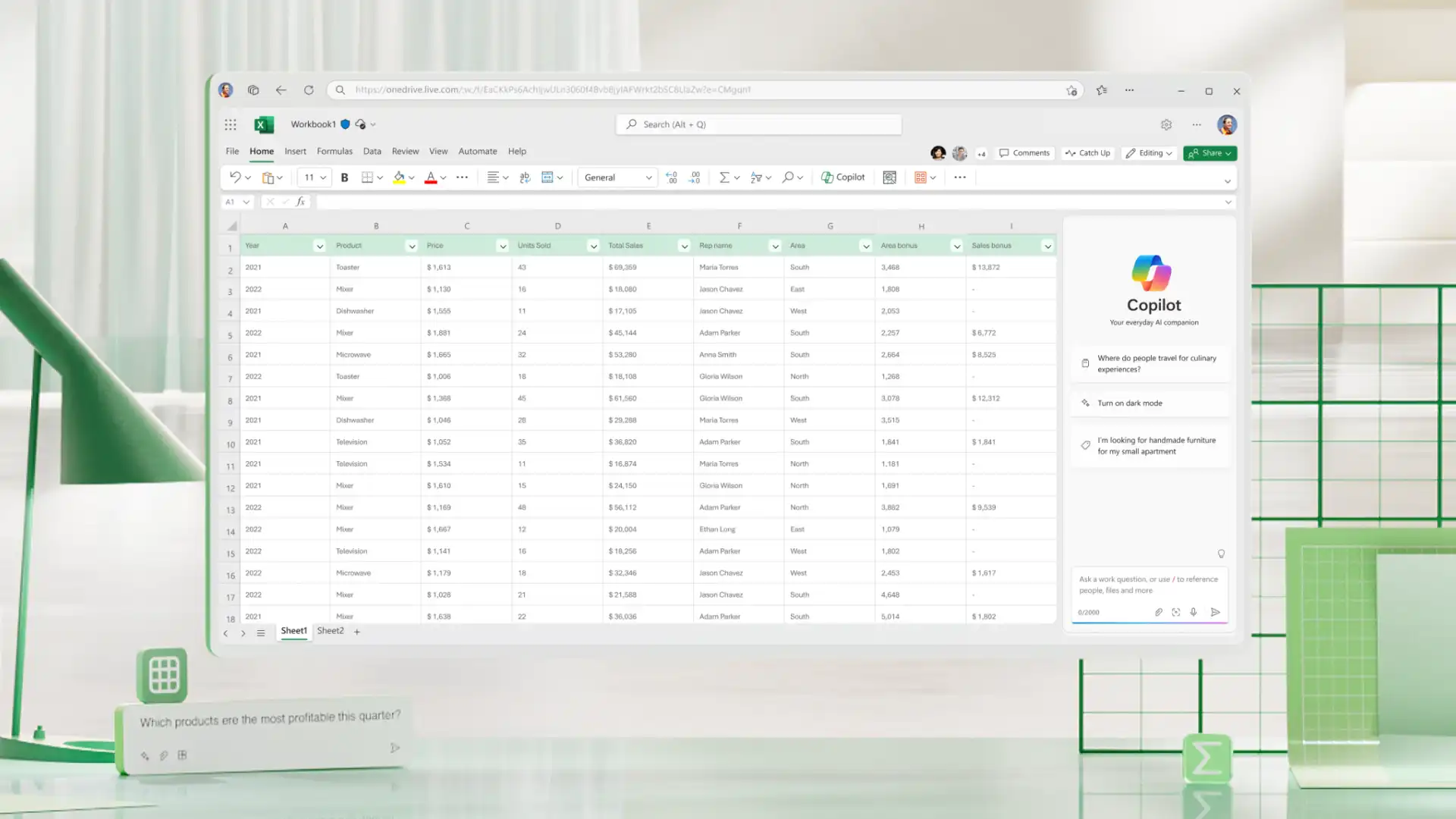
Six ways to review and refine PDF to spreadsheets using AI
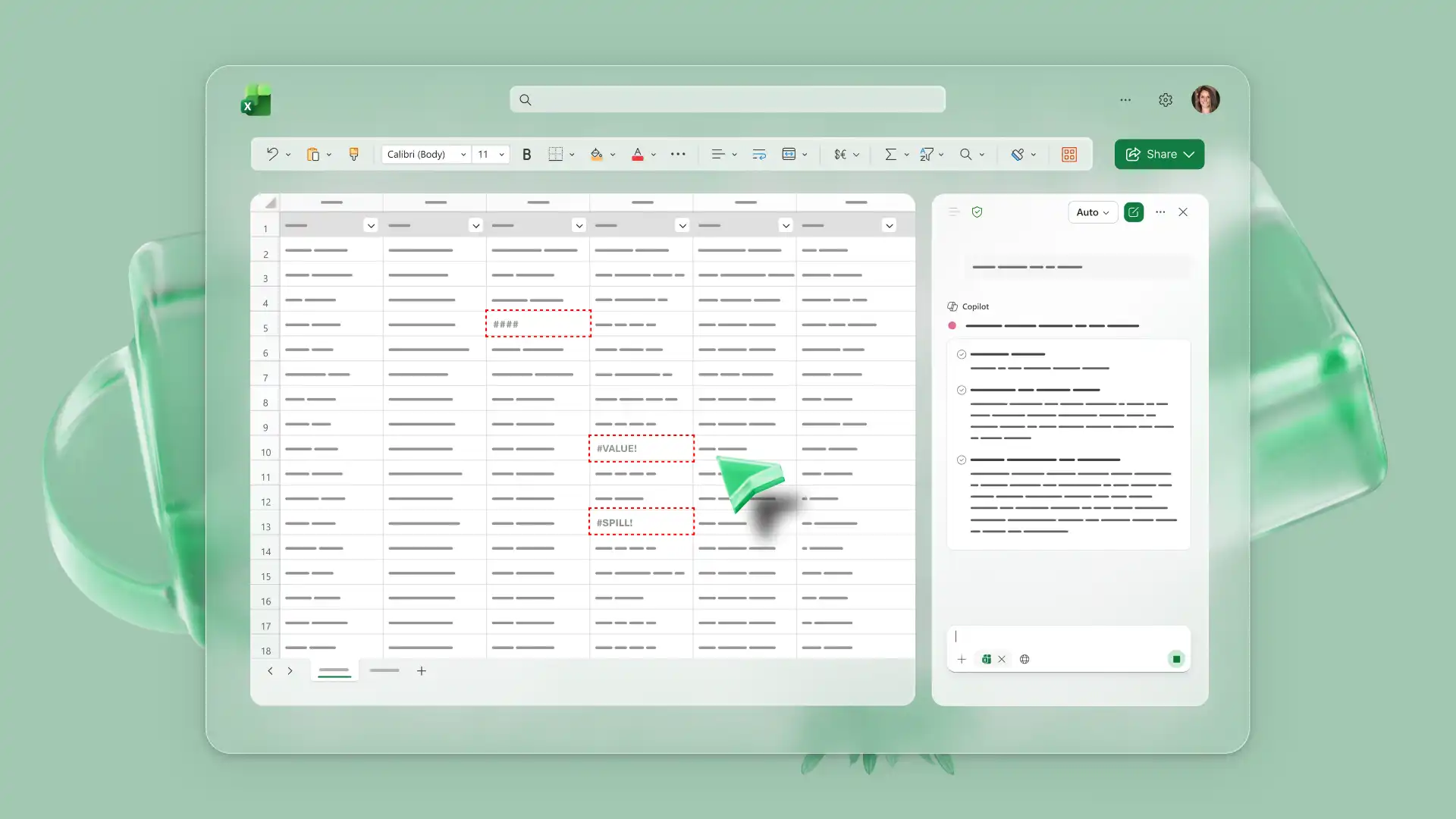
Clean and organize data
Save time by asking AI to help remove duplicate entries or rearrange information for consistency. Create labels, categorize records, or fill blank cells to organize datasets into accurate, professional formats.
Refine formatting and data structure
Prepare converted spreadsheets for a detailed analysis by using AI to bring messy data into an editable and review-ready state. AI can help standardize formats, split merged cells into usable columns, reorganize tables, and fix inconsistent naming to build a spreadsheet that’s easy to work with and derive insights from.
Use formulas to calculate totals
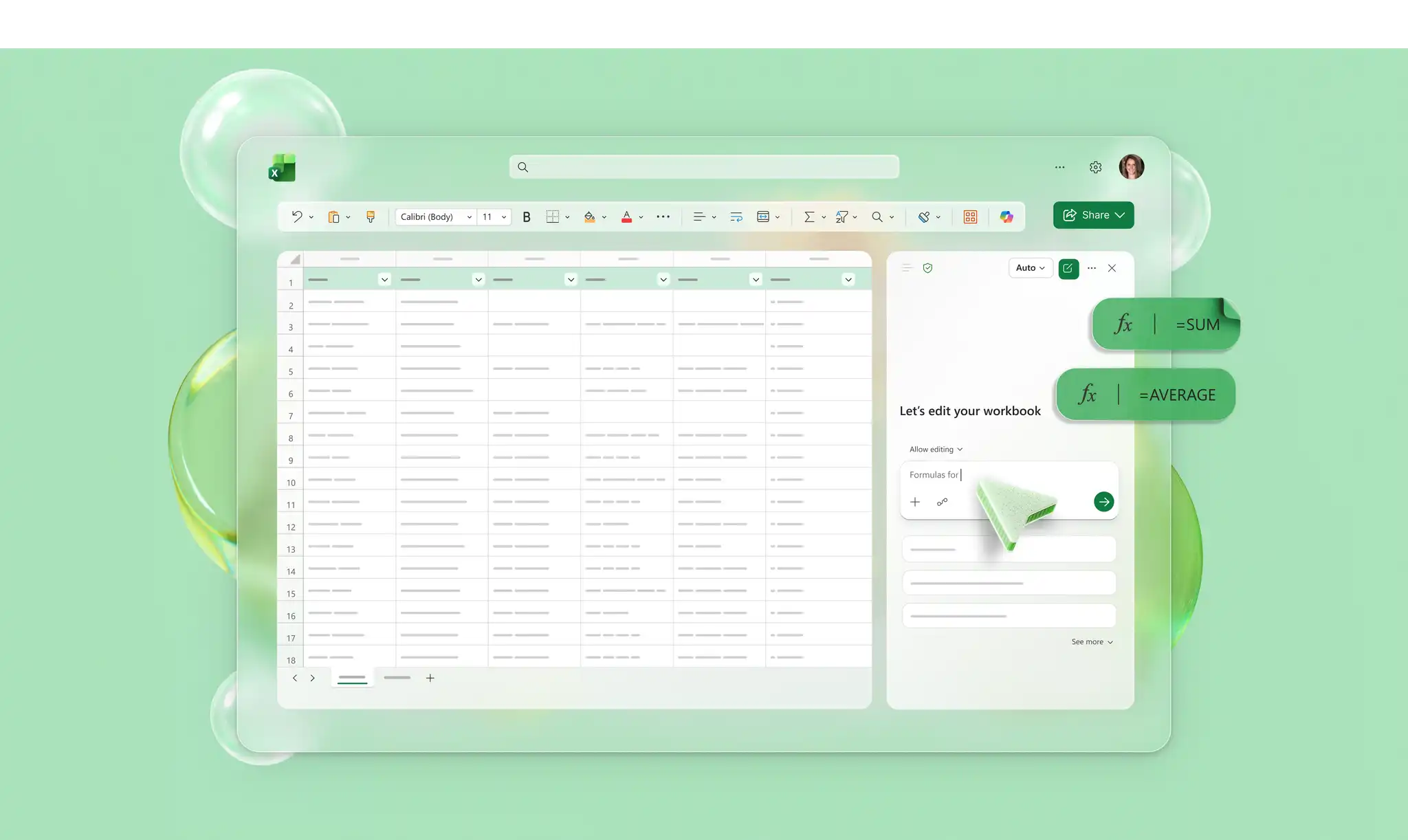
Once data is organized, Copilot can suggest formulas to calculate, compare data, and get totals ready. Track expense reports, evaluate sales performance, or finalize invoice balances with greater accuracy using AI-powered formulas.
Analyze trends and patterns
Move from restructuring to analysis in one workflow as AI helps identify trends and shares unusual patterns in the chat. Review analysis and further compare time periods in spreadsheet data with follow-up prompts. Evaluate seasonal changes and performance shifts to support quick business reporting.
Create charts and dashboards
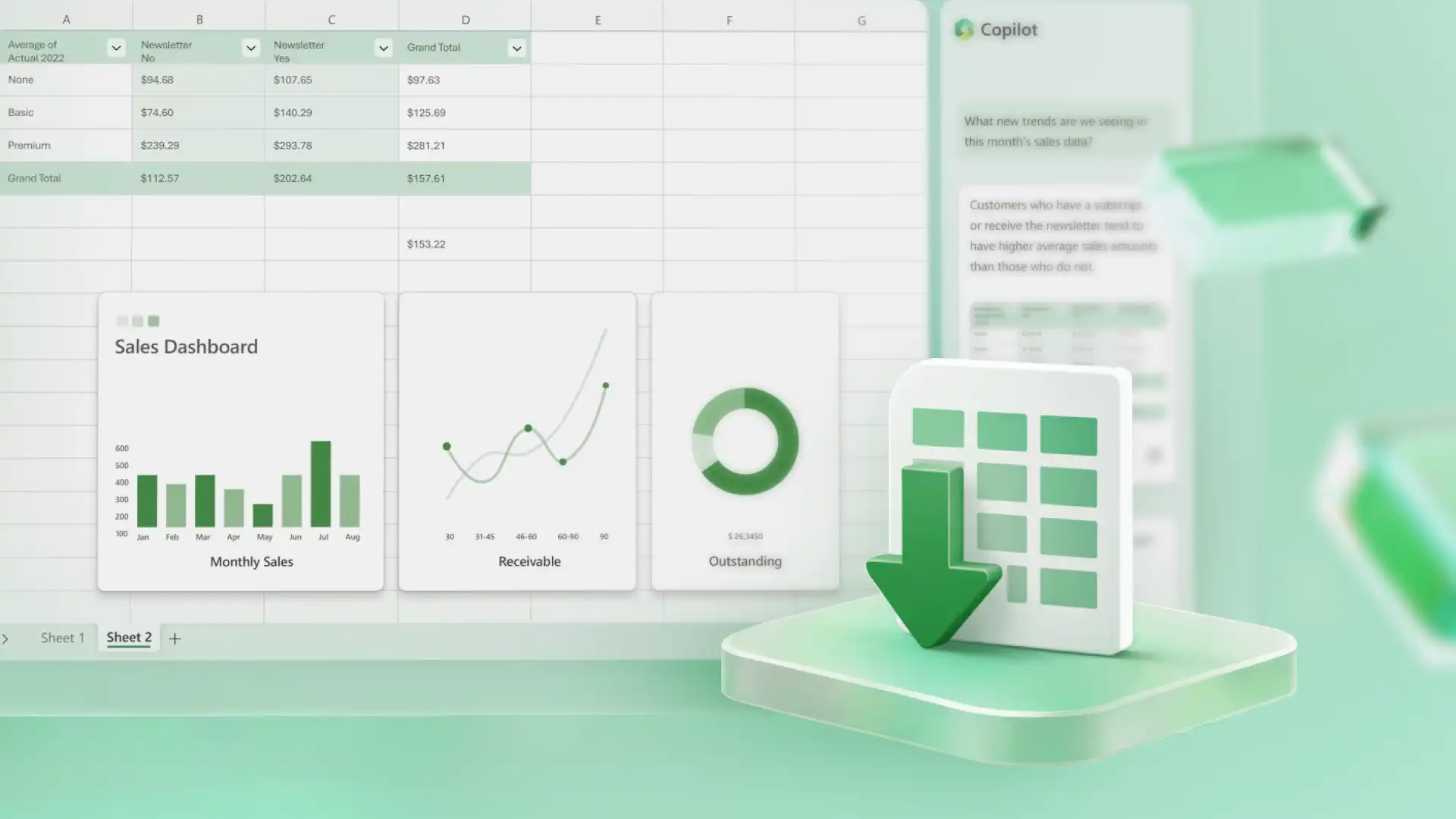
Use Copilot to visualize data in charts, tables, graphs, or dashboards to explain information in a more precise and engaging manner. Presenting static data in visual forms is an effective way to communicate results and trends with stakeholders.
Generate data summaries
Copilot helps explain important spreadsheet findings and trends in plain language to improve analysis and investigate unusual values for richer insights. Chat with Copilot to generate explanations for trends, sales forecasts, and outliers without manually reviewing every row of data.
Tips for converting PDF to Excel spreadsheet
A thorough review is the difference between a draft and a final version. Consider these useful tips to successfully convert a PDF to an Excel spreadsheet.
Start with a clean source file: an error-free PDF can help create an error-free Excel workbook.
Validate extracted data: review extracted tables from PDFs, then review the structure, cells, and key information to ensure accuracy in converted spreadsheets.
Check formatting consistency: verify dates, currencies, and number formats for error-free values that are ready for review.
Organize data for analysis: group related information in new tables and columns to improve context and produce a spreadsheet that’s easy to understand.
Use AI to streamline cleanup: rely on Copilot to save time identifying duplicates, standardizing categories, and refining naming conventions, to ensure smoother editing.
Excel works as an AI-powered conversion tool to interpret, structure, and evaluate data while also keeping document privacy intact and protected. From invoices to financial statements, one single tool streamlines the entire workflow of converting a PDF to Excel spreadsheet, then editing, refining, and analyzing it.
After converting, find efficient ways to analyze a spreadsheet or learn how to build practical budget planners and manage finances more efficiently.
Frequently asked questions
- How do PDF tables convert to an Excel spreadsheet without losing formatting?
PDF tables convert better when the source document contains clearly defined rows, columns, and headers. Copilot in Excel can identify table structures and rebuild them into editable spreadsheet formats, although results may vary depending on the quality, complexity, and layout of the PDF.
- How does a bank statement PDF convert to an Excel spreadsheet?
It is easy to convert bank statement PDFs to editable Excel spreadsheets when the document contains readable, structured information. Remove any password-protection then attach the PDF bank document using the plus icon within Copilot chat, then ask AI to turn the PDF into an Excel spreadsheet. After conversion, review converted files using AI, organize transactions using charts and formulas, or simply save for recordkeeping.
- What can I do with data after converting a PDF to an Excel spreadsheet?
Edit, analyze, visualize, and share data directly in Excel. Copilot can assist with organizing information, creating formulas, identifying trends, building charts, generating summaries, and explaining findings in plain language.
- Why isn't a PDF converting to an Excel spreadsheet correctly?
Low-quality PDFs, password protection, file corruption, inconsistent formatting, or complex layouts can affect PDF to Excel spreadsheet conversions.