Eight ways to create and analyze an Excel spreadsheet with AI
Learn how Copilot in Excel can suggest formulas, help clean data, explain trends...

Create reports, track projects, and analyze data with customizable spreadsheet templates and Copilot in Microsoft Excel.


Use built-in Excel formulas to handle data tasks like quick totals or detailed budget forecasts. Chat with Copilot in Excel to understand data and generate formula suggestions instantly.

Turn large datasets into clear summaries and trends using PivotTables. Group and filter data to compare values and highlight key patterns easily.

Apply themes, styles, and conditional formatting to highlight valuable insights. Share and collaborate on business spreadsheets securely and seamlessly.
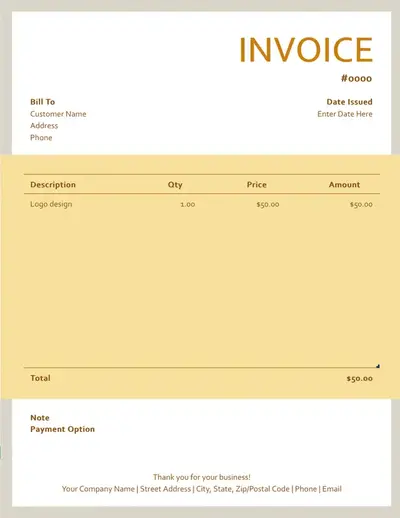
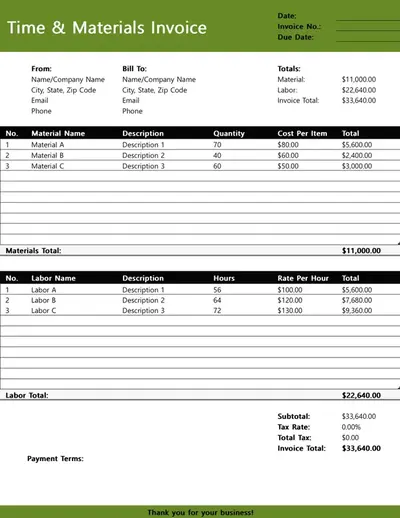
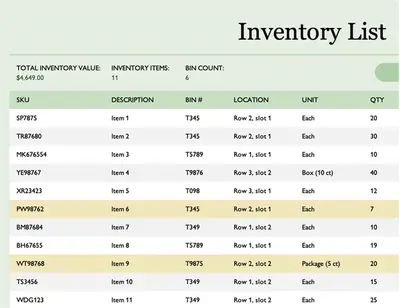
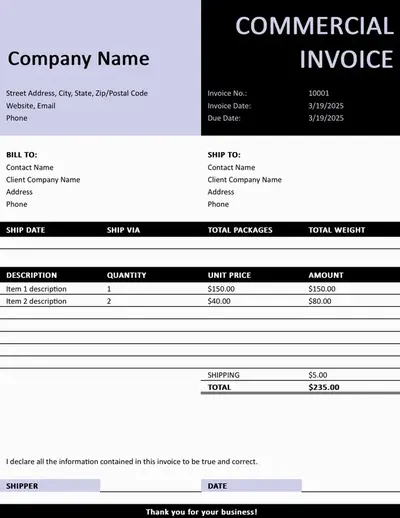
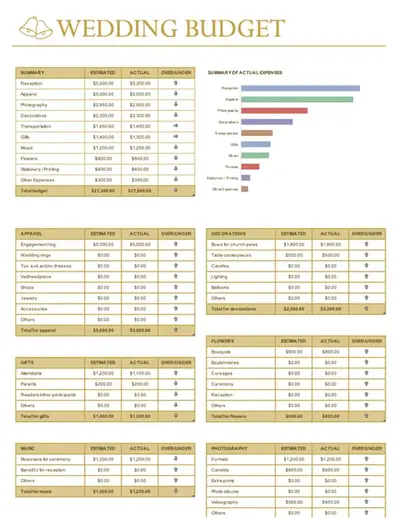
Get started with pre-formatted spreadsheets with formulas, structured labels, charts, and data visualizations. Customize example data with ease to create clear inventory trackers, budget and balance sheets, and even project timelines.

Use intuitive Excel tools to handle simple and advanced spreadsheet tasks. Whether it's personal budget plans or project management spreadsheets, organize information and summarize data clearly. Easily add formulas, charts, and pivot tables to compare values, surface trends, and reveal insights.
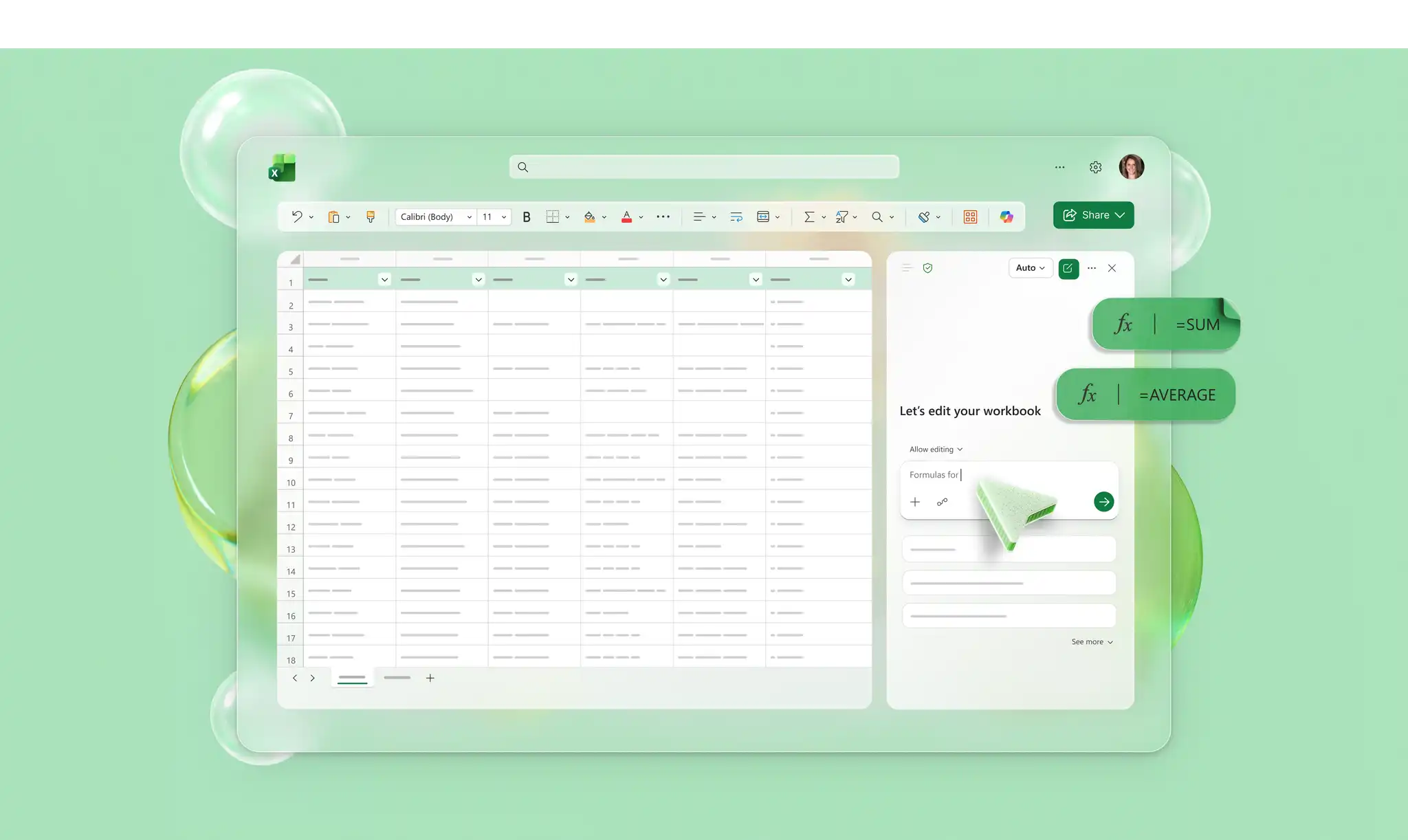
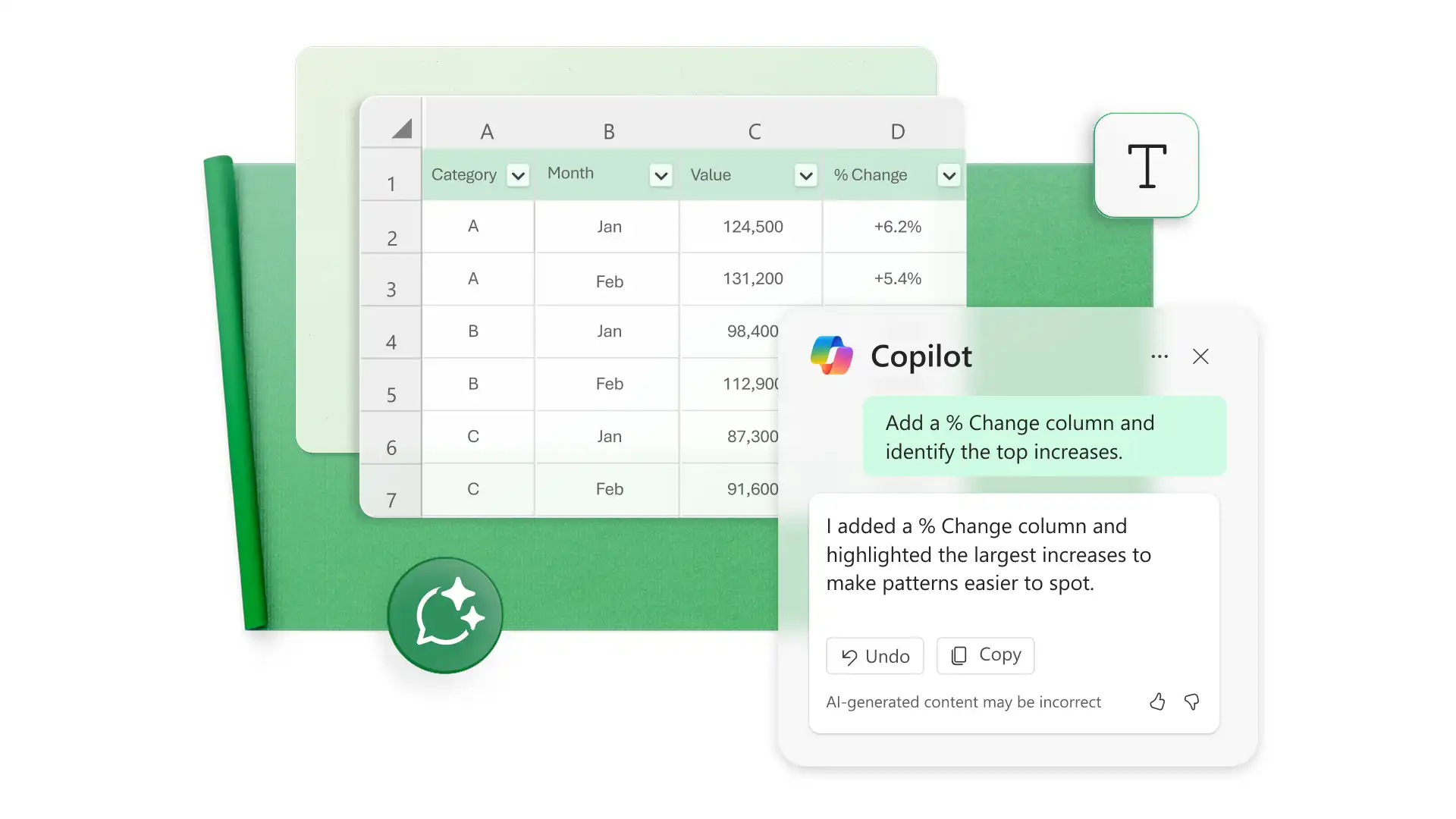
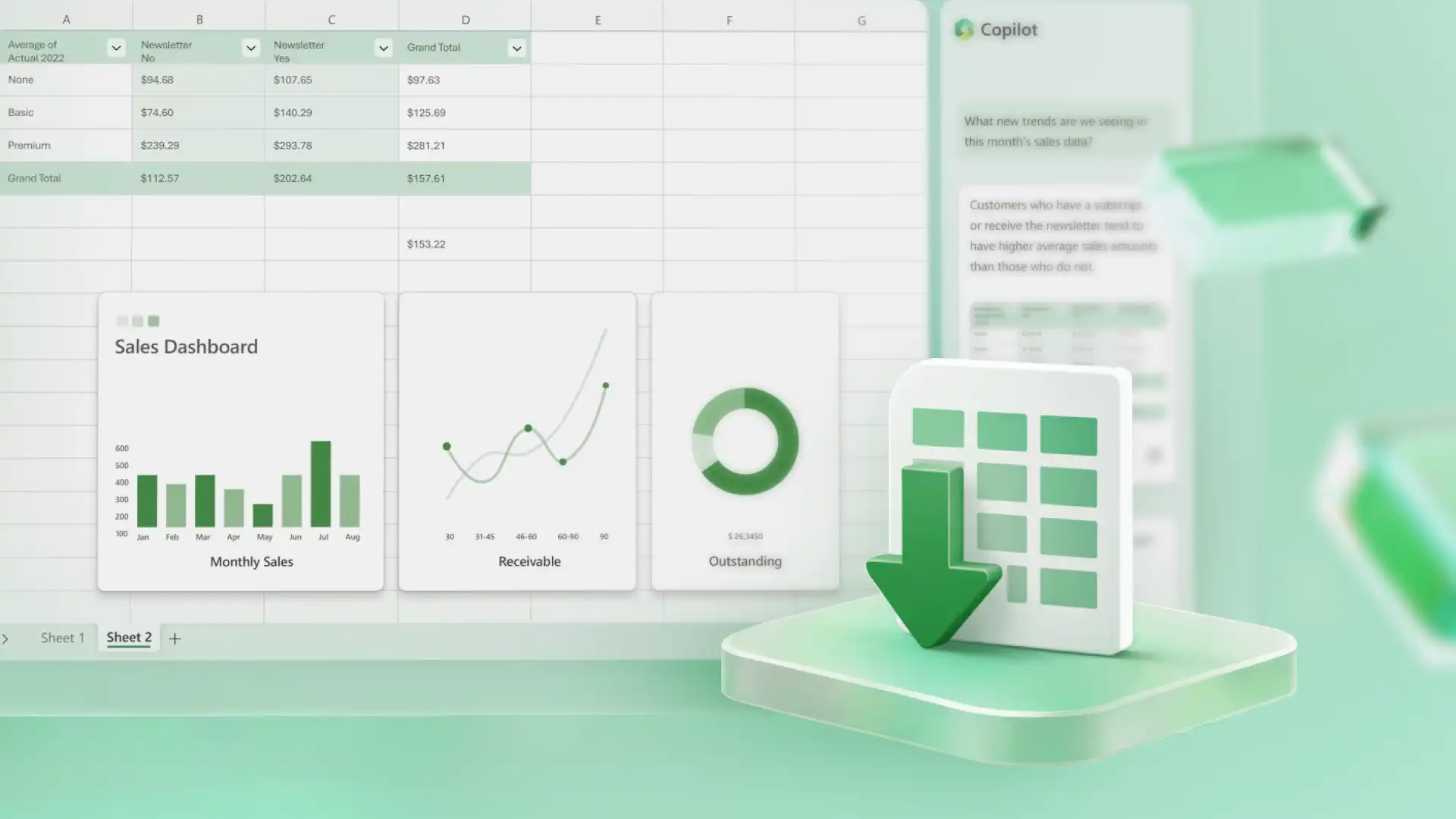
Use Copilot in Excel to create, understand, and refine spreadsheets. In the chat, Copilot can suggest formulas and explain how current cells work. Use AI to clean up project timelines, spot formatting issues in inventory tracking, or recommend a data visualization like a graph or Gantt chart.

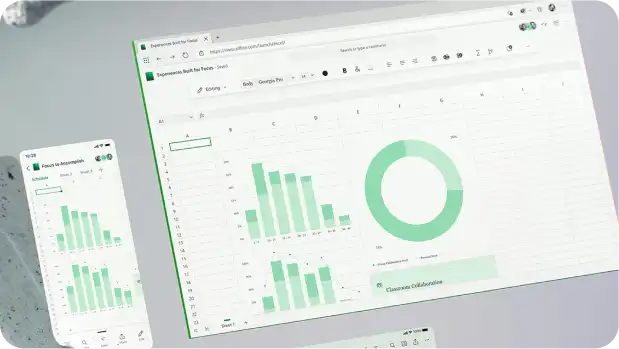
Showcase data using cell styles, conditional formatting, and charts. Achieve consistent spacing with page layout tools to improve readability. Polish spreadsheets such as budget planners with brand logo and theme colors then share online, add to online presentations, or print as dashboard reports.
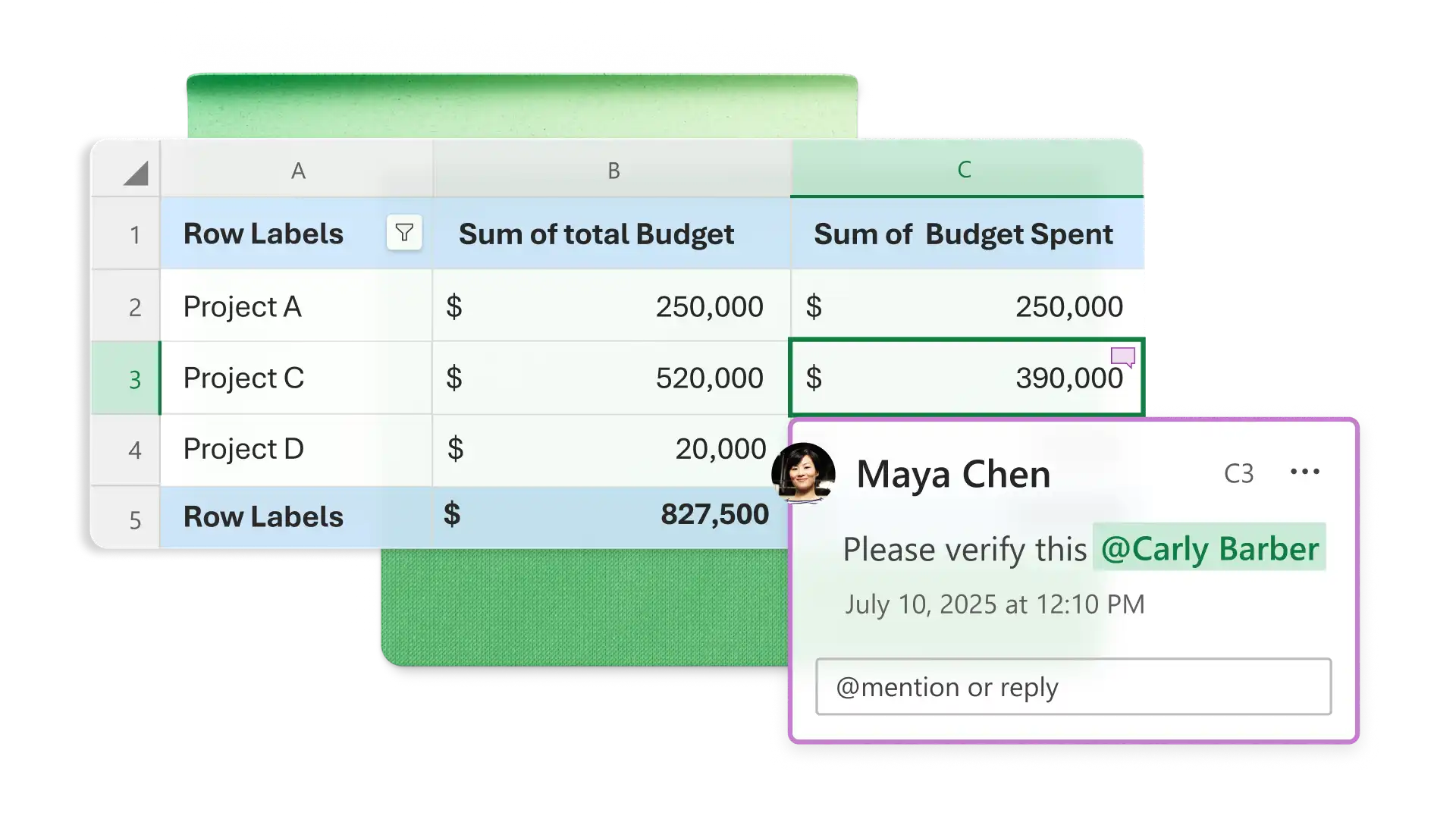
Invite contributors to edit spreadsheets in real-time for effective teamwork. Share Excel files online with clear access controls using organization-safe links. Coordinate updates with comments to stay aligned and utilize cell protection to retain key information.
Download sheets as a PDF, print in flexible layouts, or share access online using a secure OneDrive link. Work smarter by saving Excel spreadsheets as templates to reuse the structure, formatting, and formulas with new data.
Open Excel for the web to start with a new spreadsheet or customizable template.
Add data in columns and rows, keeping formatting consistent.
Chat with Copilot in Excel to ask for formula suggestions or clarify results.
Download, print, or share spreadsheets online with secure links.
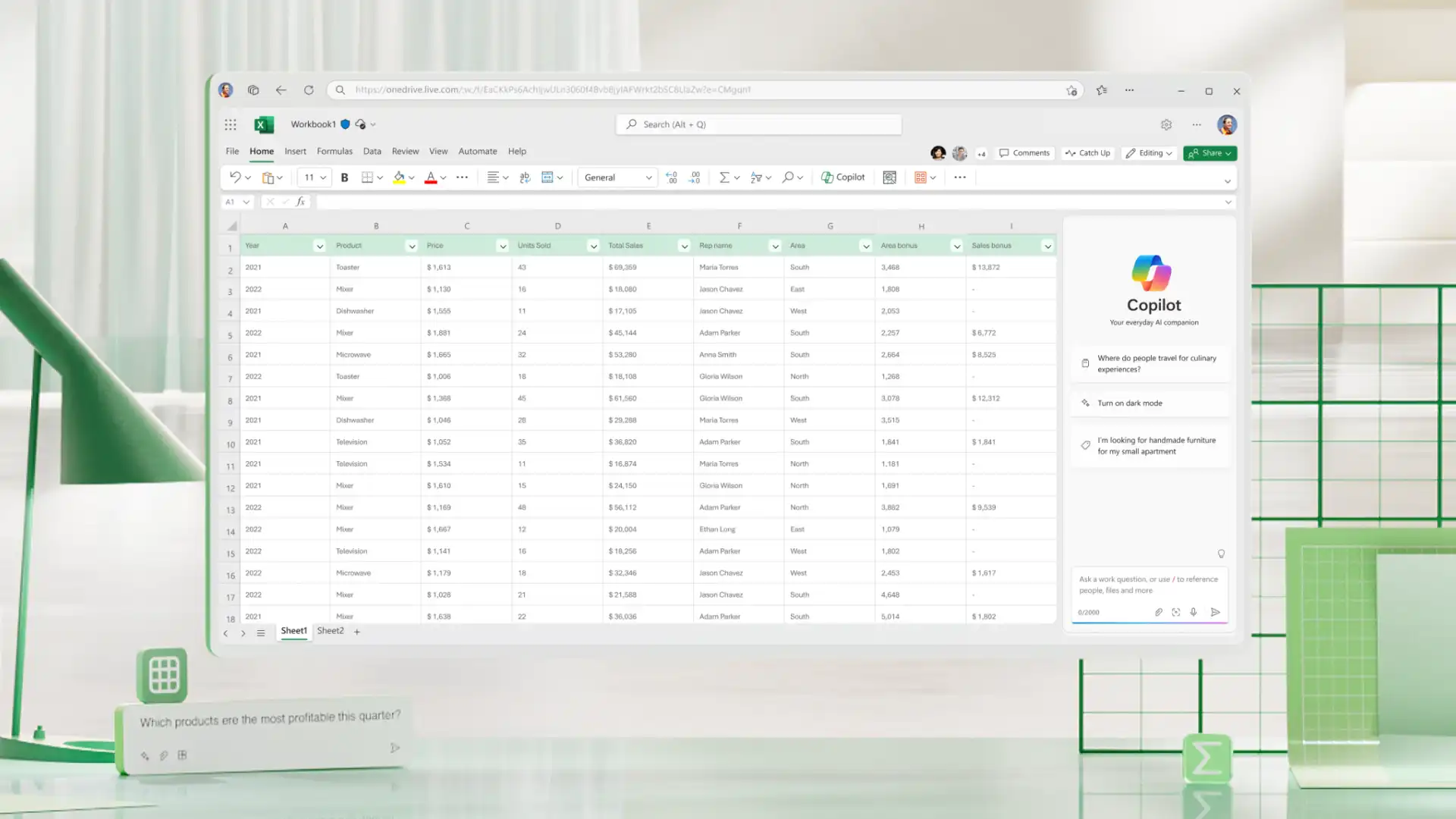
Create, edit, and share spreadsheets online for free with Excel for the web using a Microsoft account. Access core features like formulas, tables, and real-time collaboration to complete everyday spreadsheet needs like budgets, project plans, and forecasting. Enjoy advanced spreadsheet maker tools like Copilot in Excel with a Microsoft 365 subscription.
Use the Page Layout menu to set scaling, margins, print area, and page breaks. Navigate to File menu and select Print to preview and print the active sheet, a selected range, or the defined print area.
Enable sheet protection from the Review menu to prevent unwanted editing. Adjust permissions for shared spreadsheets using the Share button. Select Manage Access to review editing access and update link settings. This is especially useful for finance calculators and schedule trackers.
Open the spreadsheet in Excel for the web, then navigate to the Review tab to enter a password to unprotect a file. Use Manage Protections to update permissions.