
Cash flow forecast templates
Create cash flow forecasts with customizable templates in Microsoft Excel. Compare...

Model scenarios, analyze trends, and plan with confidence using forecast sheets and AI in Microsoft Excel.

Build a foundation for forecasts using past datasets, tables, and records. Connect and clean up data from existing spreadsheets, reports, and CSV files to create forecasts such as sales revenue or inventory demand.

Use the Forecast Sheet feature to create visual forecast charts automatically from existing data. Discover steady trends or highlight seasonal patterns to predict future demand using Excel functions like FORECAST.LINEAR.

Review Excel data sets using Copilot in Microsoft Excel and identify patterns to improve forecasting. Analyze large spreadsheets like cash flow statements and loan calculatorswith ease or generate an AI summary to share.

Support planning decisions with trend analysis. Review past performance to identify patterns, seasonal trends, and changes over time. Use line charts and trendlines to visualize how sales, expense sheets, or budgets track, then apply insights to create more informed forecasts.
Connect existing data and use the Forecast Sheet feature to predict what comes next, with no need to memorize formulas. Compare best-case and worst-case scenarios to understand outcomes and prepare for uncertainty. Build a forecast with ease, whether it's analyzing business spreadsheets or personal budget trackers.
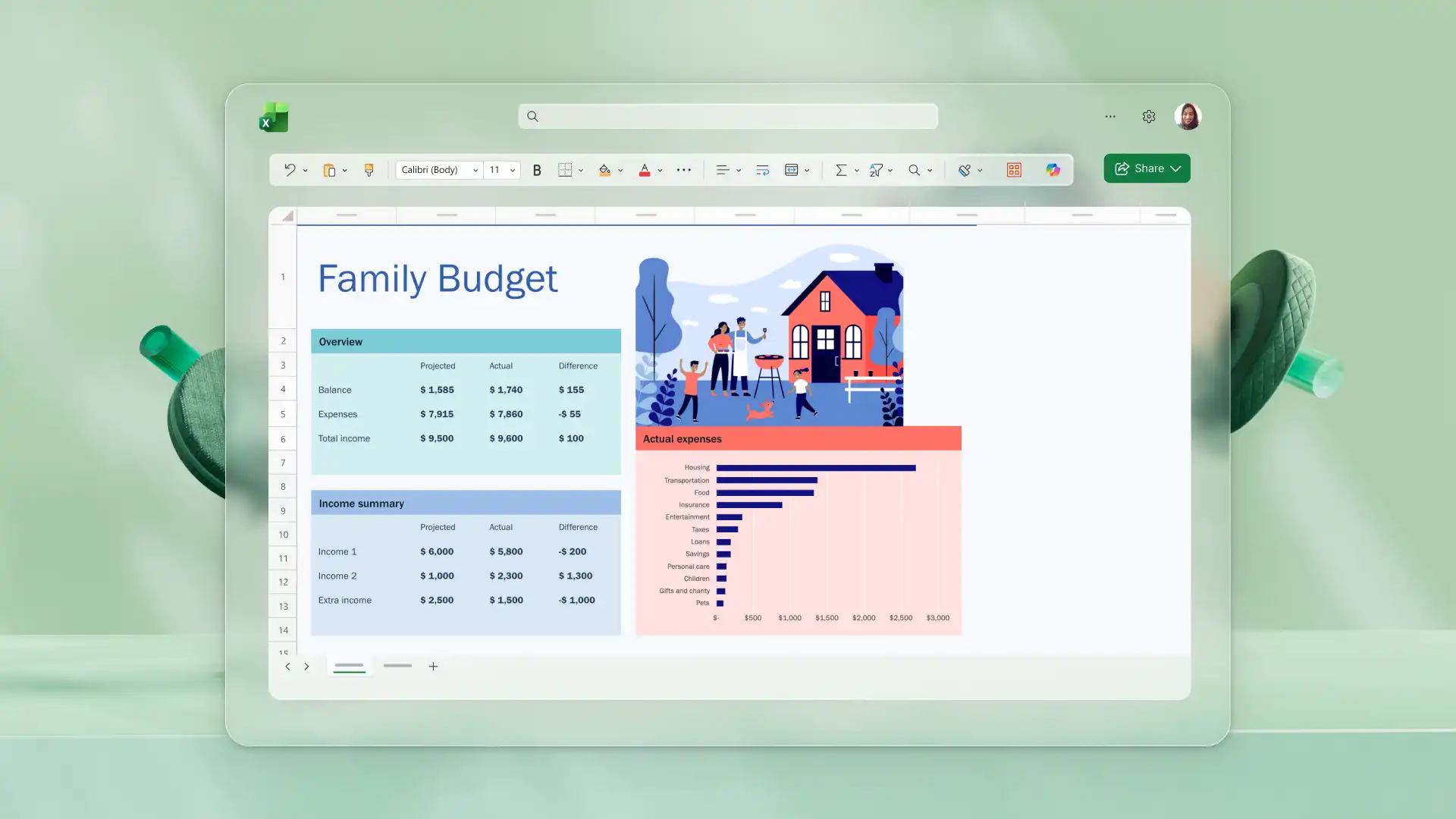

Monitor progress against goals by comparing forecasted values with actual performance in dashboards and PivotTables. Keep forecasts updated as new data becomes available, and use actual results to measure accuracy. Identify gaps between expectations and outcomes, then adjust future plans with confidence.
Enhance data forecasting with AI insights. Chat with Copilot to explain past trends to support planning. Build a forecast sheet then ask Copilot to identify patterns that can affect future budgets or demand. Review suggestions and formulas as a starting point, then refine and apply to build a forecast.

Invite teams to review forecast sheets or update cash flow projections together using secure online links. Create repeatable forecasting processes using templates that can be reused for each period. Present forecast charts and dashboards in clear formats, or export as PDF to share using email.
Open a spreadsheet with past data that includes dates and values, such as sales by month or expenses by quarter.
Select the data range and navigate to the Data tab to choose Forecast Sheet and create a forecast automatically.
Review the forecast chart and adjust settings like forecast end date or confidence intervals as needed.
Insert the forecast sheet and use the projected values to support planning, budgeting, or reporting.
Chat with Copilot in Excel to analyze forecast results or update projection scenarios.
Start with a spreadsheet that contains past data with dates and values, such as monthly sales or quarterly expenses. Highlight the data range, navigate to the Data tab, and select Forecast Sheet. Excel builds a forecast table and visual chart that shows projected values along with confidence intervals. Copilot can also convert an existing PDF containing past data to rebuild it into an editable spreadsheet for analysis.
Organize historical sales data with dates and revenue figures. Use Forecast Sheet to create a visual projection automatically, or apply FORECAST.LINEAR for steady trends and FORECAST.ETS for seasonal patterns. Review the forecast to support sales planning, cash flow forecasting, and target setting.
The AI spreadsheet assistant can help in different stages of forecasting. Copilot supports forecasting workflows but does not replace the Forecast Sheet feature for building projections. Chat with Copilot to clean existing data formatting, fix Excel workbook errors, or analyze results after creating a forecast sheet.