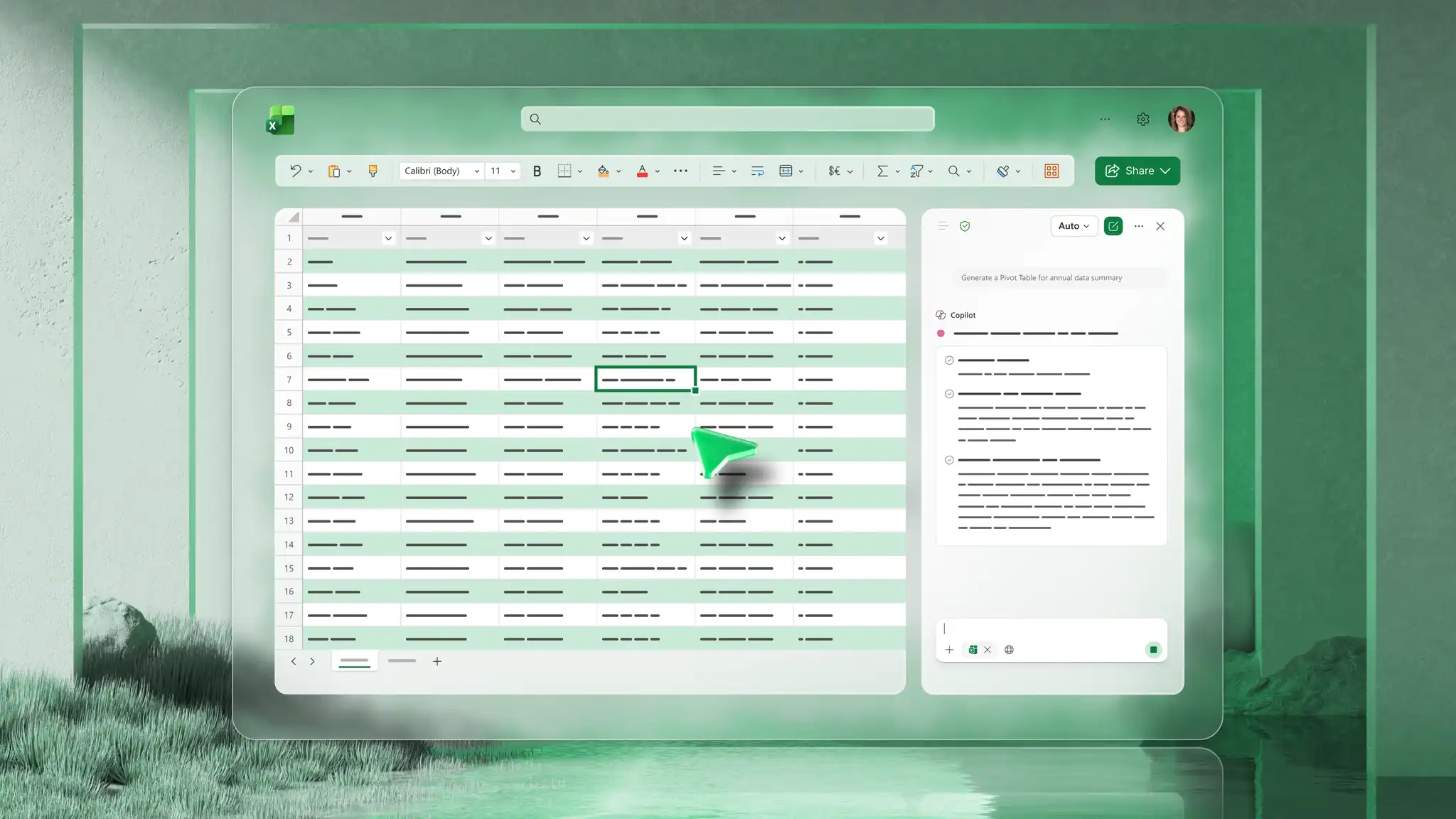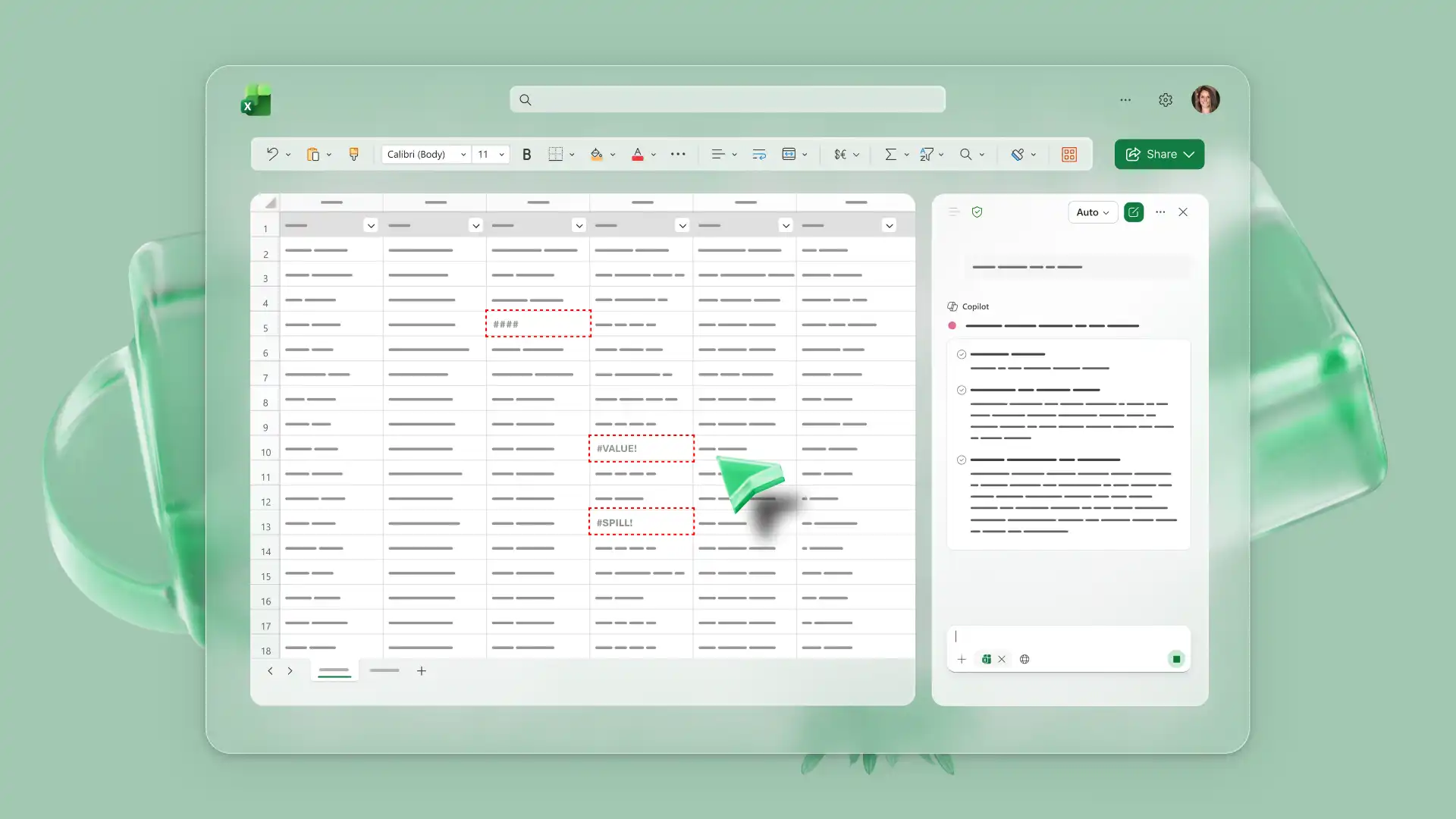
Microsoft Excel spreadsheet errors can stop work in progress, whether one's building an inventory tracker or updating a cash flow statement. Error codes like #NAME?, #REF!, and #VALUE! point to an issue with a formula or a missing reference, but it can be challenging to fix quickly.
There’s a new way to troubleshoot Microsoft Excel workbook errors, and it doesn’t require memorizing error codes or spending time searching for documentation. With Copilot in Excel, anyone can describe the problem in the chat, and AI can help identify and suggest how to resolve the error.
Learn about common Excel errors and how to use Copilot to troubleshoot them. Open a spreadsheet in Microsoft Excel to follow along and modify the example prompts to resolve errors.
How to use Copilot to solve Excel errors
Copilot in Excel works as an AI spreadsheet assistant that responds to questions and requests typed in everyday language. Copilot can explain what a formula does, identify likely causes of an error, and suggest corrections. Try these steps to use Copilot to troubleshoot workbook errors:
Open a new or existing spreadsheet or import data from a PDF in Excel for the web and select the Copilot icon to start the chat.
Describe the problem in the chat, including references to specific cells or ranges if applicable.
Review the suggestions Copilot provides in the chat and apply the recommended fix to the spreadsheet.
Ask follow-up questions in the chat to understand the issue better.
Tip: review each suggestion before applying it to make sure the fix matches the intended outcome. For creating new formulas from scratch, use the Excel formula generator to turn a simple description into a working formula.
Fix Excel formula syntax mistakes with AI
Formula syntax errors happen when Excel cannot understand how a formula is written. A missing bracket, an extra comma, or a misspelled function name can prevent the formula from running. These errors are common for beginners and even experienced users working with complex formulas.
For example, a budget spreadsheet or cash flow forecast might use a SUM formula to calculate total monthly expenses. If the formula returns an error instead of a number, the issue could be a missing closing bracket or function name typed incorrectly, such as SUMM instead of SUM. Quotation marks missing around text values cause similar problems, especially in formulas that combine text and numbers.
Tracking these small mistakes manually takes time, especially in longer formulas with multiple nested functions. Ask Copilot to review the formula and explain what is wrong by pasting the full formula into the chat or referencing the cell that contains it.
How to solve common Excel formula errors with AI

1. Resolve #NAME? errors
The #NAME? error appears when Excel does not recognize something in the formula. This appears when a function name is misspelled, quotation marks are missing around text, or a named range referenced in the formula does not exist in the workbook.
For example, a sales report might include a formula to calculate the average order value, and referencing a range called "SalesData" that doesn't exist would trigger this error.
Use Copilot to identify which part of the formula Excel does not recognize and get suggestions for the correct spelling or syntax.
2. Fix #REF! errors
The #REF! error means a formula refers to a cell or range that no longer exists. Deleted rows or columns, data moved to a different location, and copied formulas with broken relative references all cause this problem.
An inventory tracker might calculate total stock value by multiplying quantities in one column by prices in another. The formula loses its reference and displays #REF! instead of the expected total if a column gets deleted.
Ask Copilot to trace the formula and find which cell or range reference is broken so it can be updated.
3. Understand and fix #VALUE! errors
The #VALUE! error means Excel encountered values that do not work together in a formula. Numbers stored as text, unexpected characters like spaces or currency symbols in numeric cells, and incorrect formula arguments can trigger this error.
#VALUE! might show up in a personal budget planner if one of those cells contains text instead of a number and the formula cannot complete the calculation.
Describe the error to Copilot to get a simple explanation and find out which cell contains incompatible data.
4. Resolve #N/A errors in lookup formulas
The #N/A error appears when Excel cannot find the value being searched for in the lookup range. This happens when the lookup value is missing from the list, typed differently, or formatted as a number in one place and text in another. Extra spaces or hidden characters in the data prevent a match from being found.
A customer order spreadsheet might use XLOOKUP to pull product names from a separate product list. If the lookup returns #N/A, the value being searched for does not exist in the lookup range.
Paste the lookup formula into Copilot chat to find out why the match is failing and whether the issue is missing data or formatting.
5. Fix VLOOKUP formulas that return wrong results
This happens when the wrong range is selected for the lookup table, the column index number points to the wrong column, or the formula uses approximate matching when exact matching is needed. Formatting inconsistencies between the lookup value and source data also cause unexpected results.
In an example scenario, a payroll spreadsheet might use VLOOKUP to match employee IDs with hourly rates. If the formula returns a rate that belongs to a different employee, or no result at all, the lookup ran but returned the wrong value.
Ask Copilot to explain each argument in the VLOOKUP formula to help spot where the mistake occurred.
Tips to prevent Excel errors

Use consistent data formats
Keep numbers formatted as numbers and text formatted as text throughout a spreadsheet. Mixed formats create errors in calculations and lookups that can be difficult to trace. Format columns before entering data to ensure consistency across the entire dataset.
Check formulas before copying them
Copying a formula to other cells changes its references unless they are locked with absolute references, such as $A$1 instead of A1. Verify that the formula still points to the correct cells after copying, especially when working with lookups or calculations that depend on specific ranges.
Review lookup ranges regularly
Lookup formulas can break when source data changes or moves. After adding new rows or columns to a lookup table, confirm that the formula range still covers all the data needed for accurate results.
Use Copilot to validate formulas before sharing
Ask Copilot to suggest a formula in the chat to avoid potential issues before sharing a spreadsheet with others. Catching errors early prevents confusion and avoids rework after the file has already been distributed..
Test formulas with sample data
Enter a few test values to confirm that a formula returns the expected result before applying it to a full dataset. Testing catches logic errors and edge cases before they affect real data or lead to incorrect conclusions in workbooks like forecasts.
Try these good spreadsheet practices to reduce the chance of running into common formula problems, and adapt the Copilot prompt examples to resolve Excel errors in a workbook.
Explore more ways to create spreadsheets with AI, or try the Excel formula generator to build formulas from a simple description.