Calculator templates
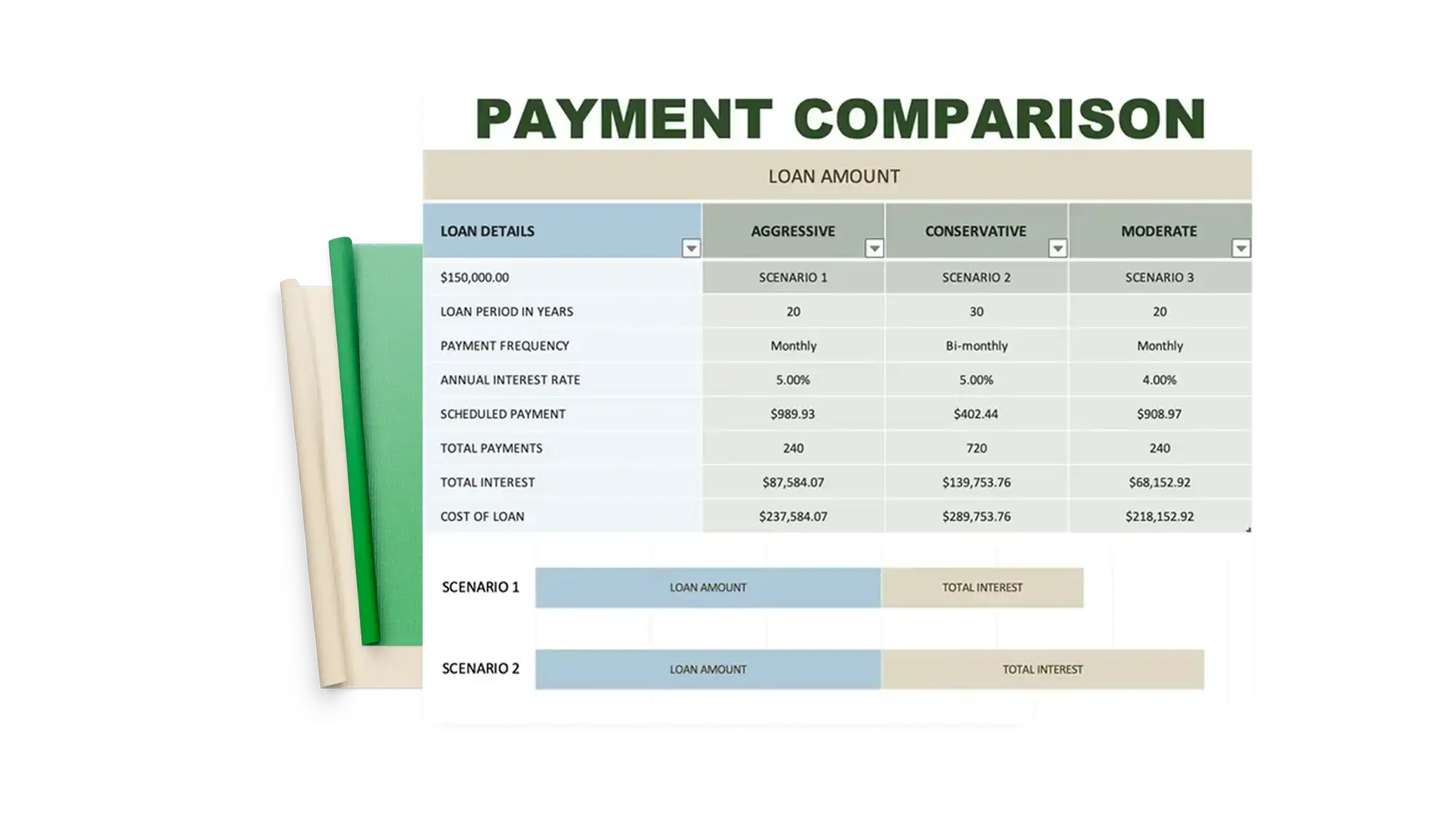
Estimate home and car loans, budgets, and savings with free personal finance calculator...

Plan income and expenses, track spending, and forecast budget changes with budget templates and AI in Microsoft Excel.


Set up income, expense categories, and savings goals into a budget template with built-in formulas and functions to calculate budgets with confidence.

Log spending by week, month, quarter, or year and review where money is spent. Revise category names to keep the sheet up-to-date, and reuse the budget planner every year for ease.

Ask Copilot in Excel to explain what specific budget totals mean, and highlight spending patterns to get a clear picture of finances. Fix spreadsheet errors by asking AI to flag data or formatting issues.
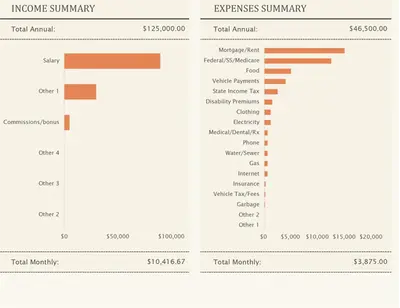
Plan a monthly budget with customizable templates for bills, savings goals, and cash flow. Inside each template, built-in formulas calculate totals and pre-set charts show spending across loan payments, utilities, housing, and transport costs.

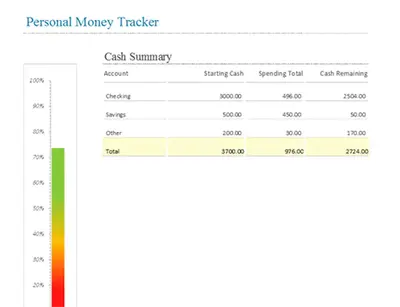
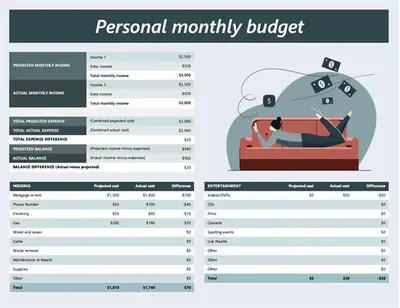
Organize money and make decisions with clarity using budget planners that calculate categories and running totals for income, expenses, and savings goals. Compare projected spending to actual expenses as the month progresses to stay on budget. Combine the monthly budget tracker with savings and mortgage calculators for clear financial planning.
View visual reports with color-coded charts that highlight key values and patterns. Graphs and dashboards in budget planners update in real-time with any change in data, helping guide daily decisions. Track monthly trends and spending breakdowns by category to see where money goes each month and identify areas to budget money better.
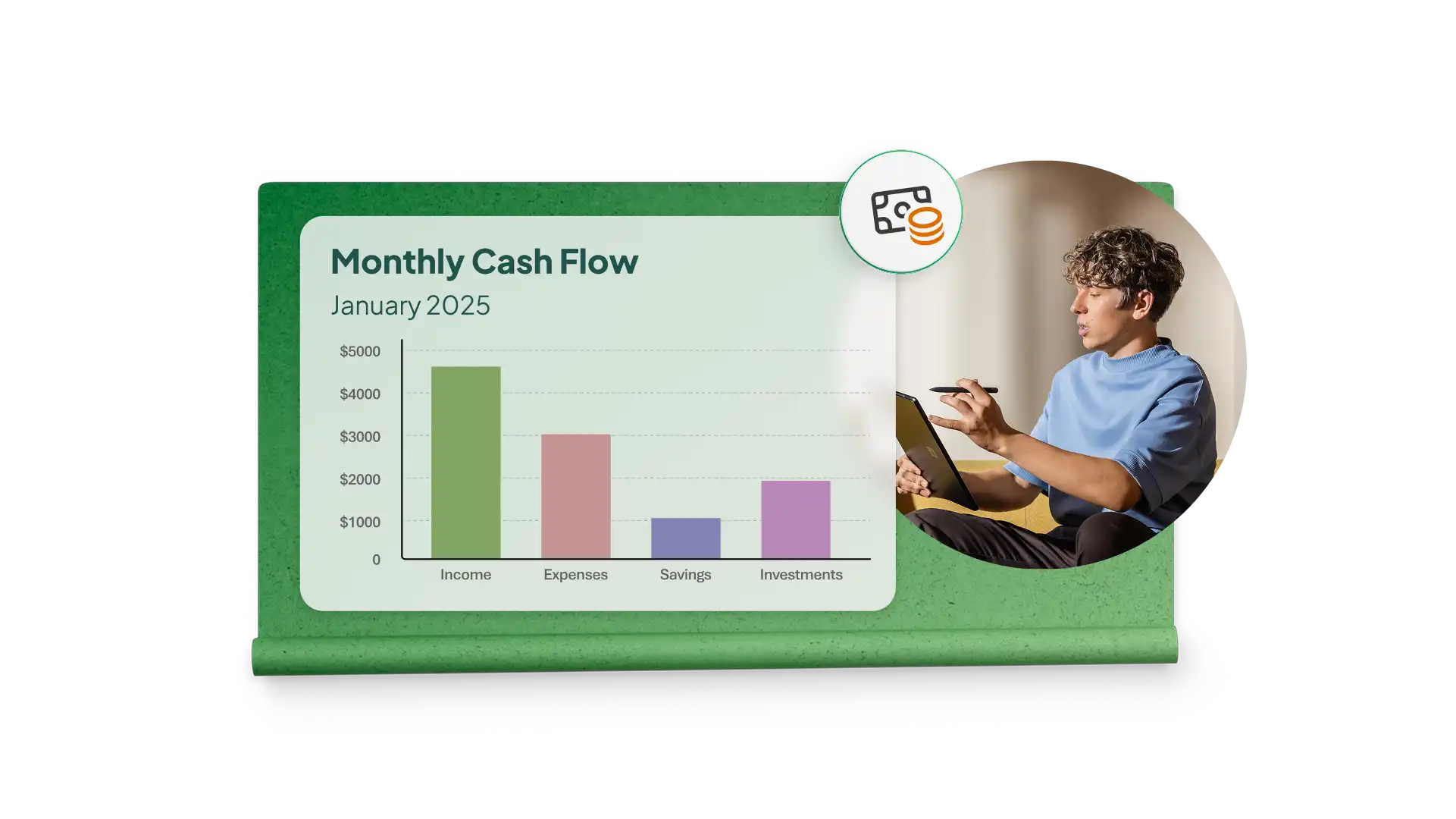
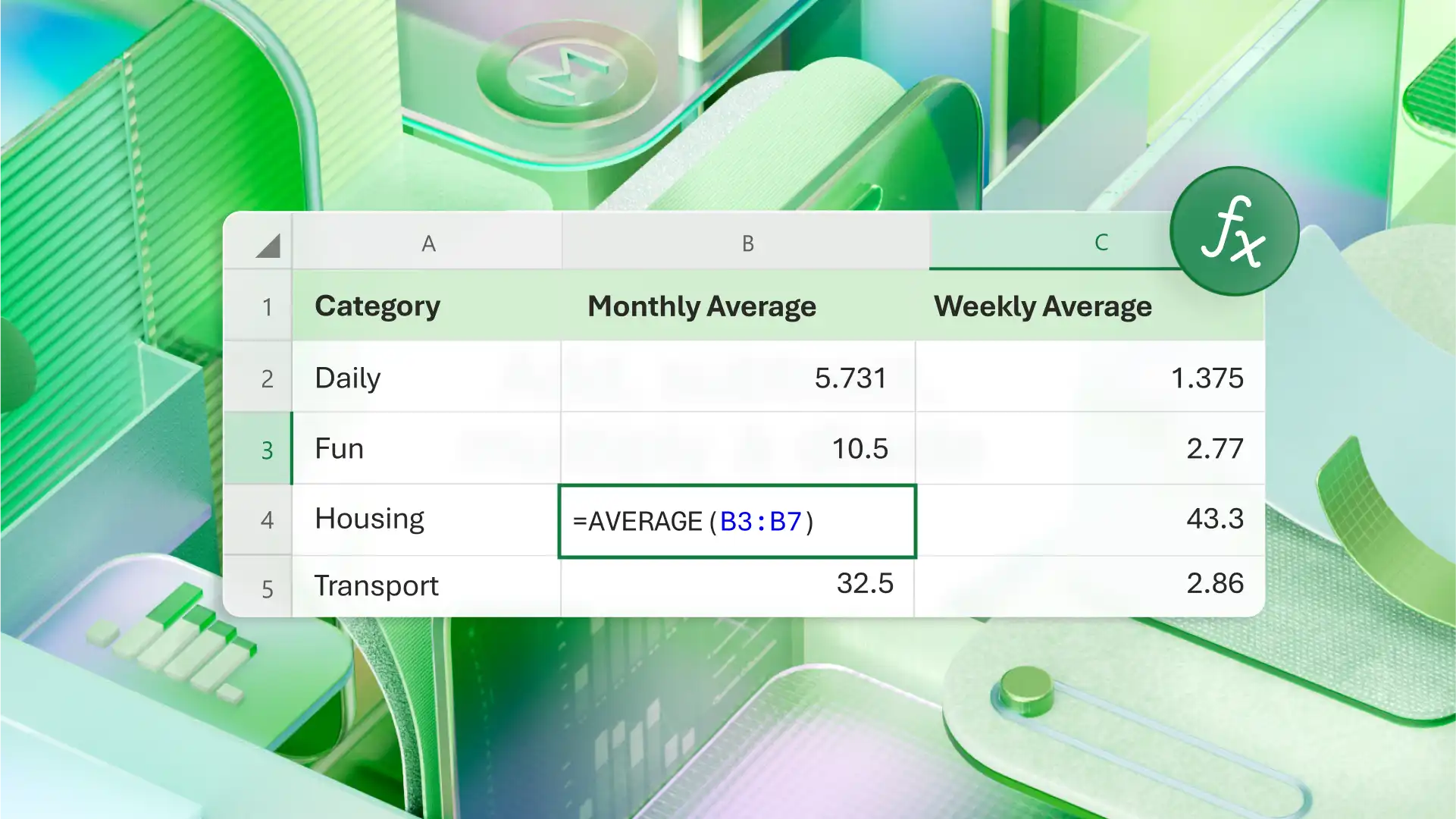
Make budget adjustments based on forecasts from past numbers. Planned and actual amounts appear side-by-side to help review goals and determine where spending stayed within limits. With clear analysis, easily prepare cash flows and make smarter budgeting decisions.
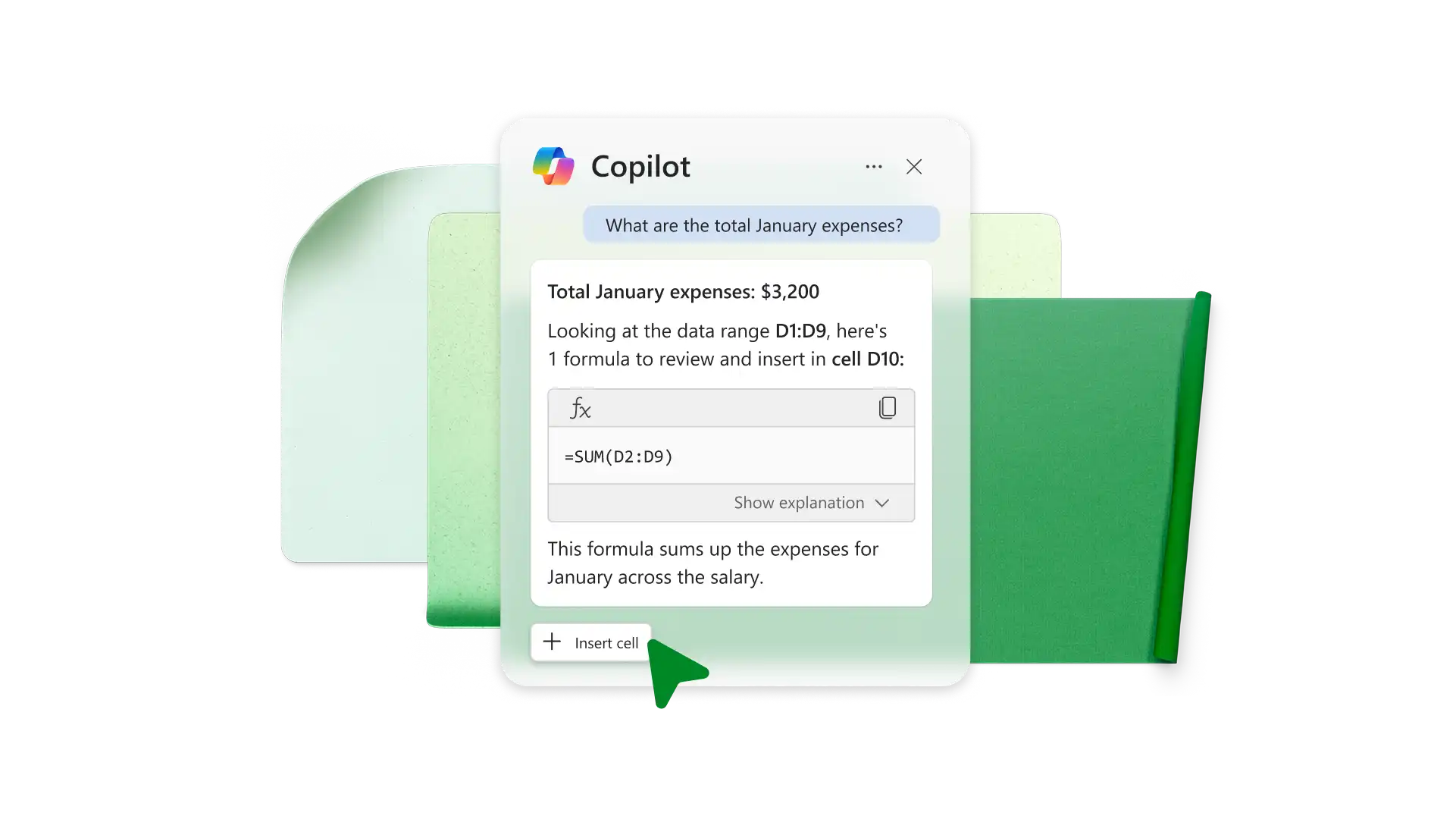
Reduce manual work by asking AI to interpret budget data and present findings. Chat with Copilot in Excel to request a summary of spending, spotlight common spending patterns, or get an explanation of how totals are calculated. Review suggestions to make informed changes to budgeting.

Create a shared budget by inviting family or friends to review a budget sheet via a secure online link. Anyone with edit access can adjust the budget, save as PDF, or reuse the file as a template. Add comments (opens in a new tab) or notes to collaborate on savings, expenses, or paying debt.
Start with a personal budget template in Excel for the web.
Customize income and expense categories in the budget tracker.
Add planned amounts and savings goals in the spreadsheet.
Track actual spending as needed.
Review using charts or chat with Copilot in Excel to analyze differences.
watch and learn
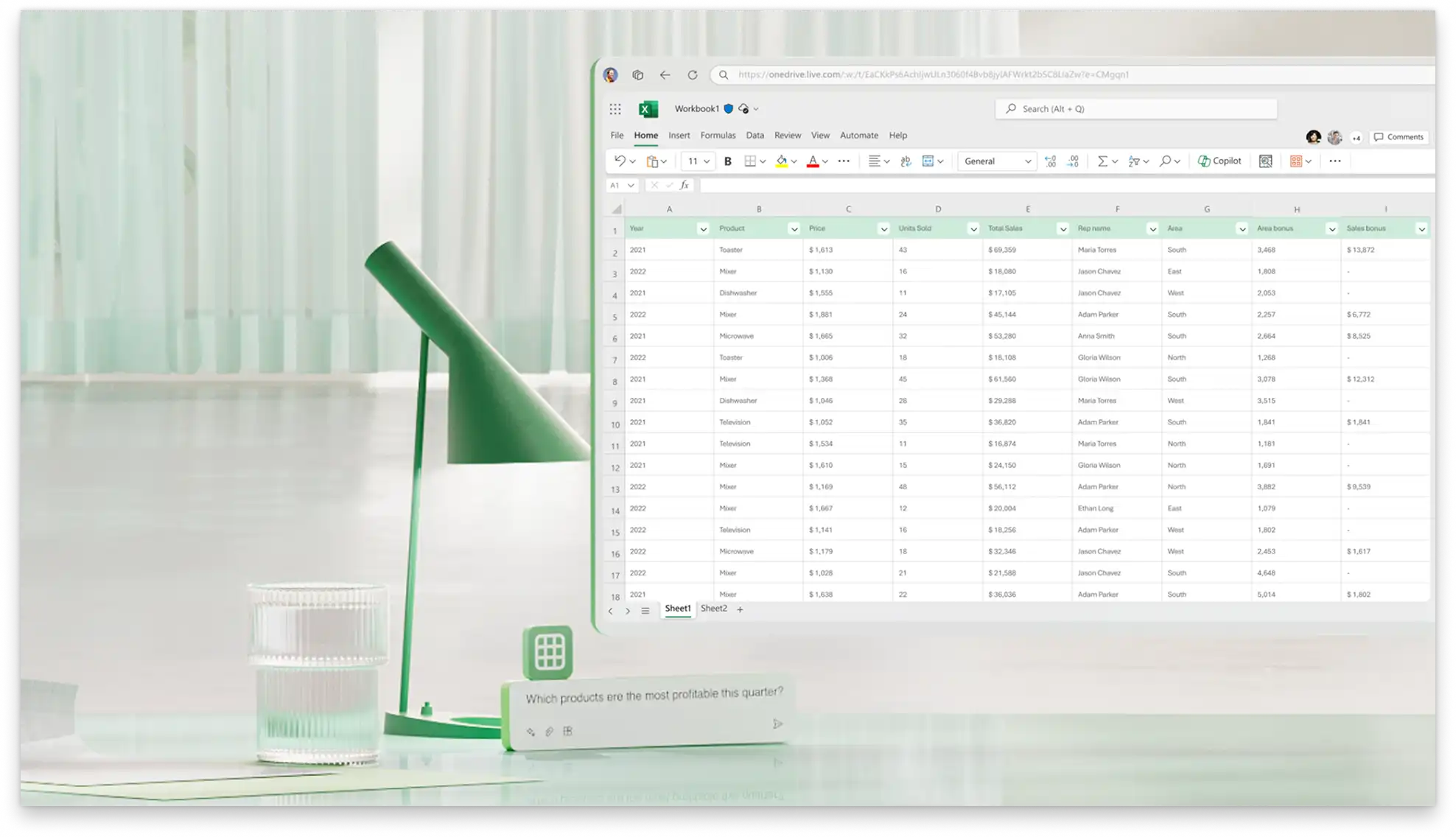
Discover how Copilot in Excel can quickly create a personalized budget spreadsheet based on income and spending categories in this video tutorial.
A personal budget is a system for tracking and categorizing expenses and subtracting them from income for a period. It clearly shows where money is spent and helps build better financial habits.
Cash flow is income after all expenses for a period, like one month or a quarter. Ideally, cash flow should be positive or zero with a zero-based budgeting system. Negative cash flow means spending exceeded income in the selected time period.
Track expenses in Excel with a free personal budget template. Enter expenses manually or import a spreadsheet with transactions. Subtotal expenses by category and set spending limits. Use conditional formatting (opens in a new tab) to highlight cells where spending exceeds set goals.
Select a budget template that matches personal financial needs. Edit categories and subcategories for spending habits like food, entertainment, travel, housing, and insurance. Once those categories are set, customize planned spending limits for each and add columns to compare spending over time or track bills by due date.
Budgeting strategies are designed to bring more control over finances. The 50/30/20 rule is an example: 50% of income goes to necessities, 30% to wants, and 20% to debt and savings payoff. Zero-based budgeting assigns every dollar to have zero left over after subtracting expenses from income, which can include savings and debt payments.