
使用 AI 创建和分析 Excel 电子表格的八种方法
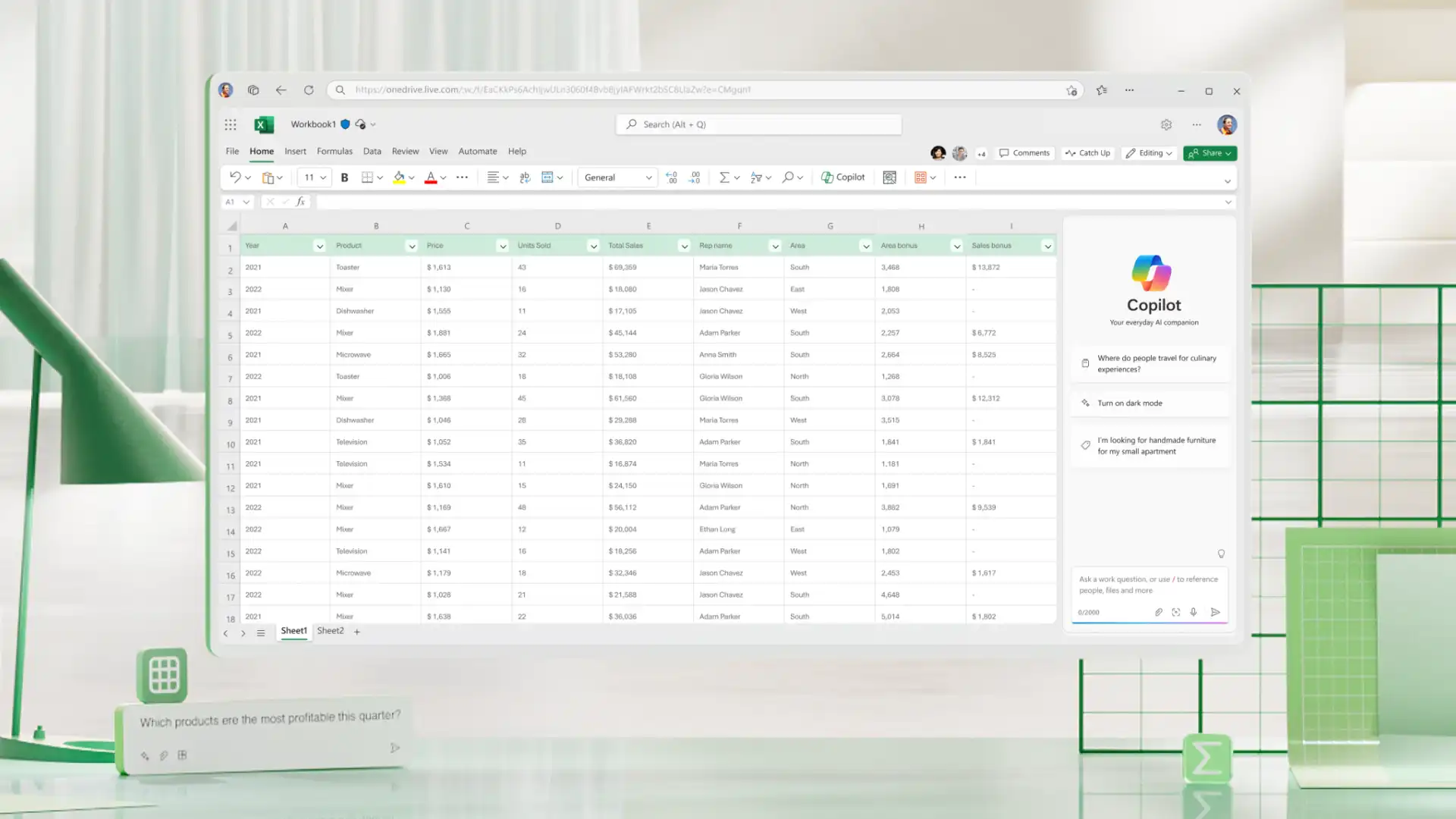
了解 Excel 中的 Copilot 如何建议公式、帮助清理数据、解释趋势以及起草电子表格大纲以供审阅。...



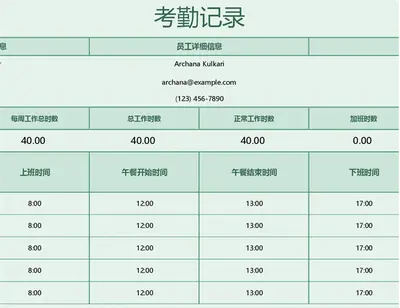
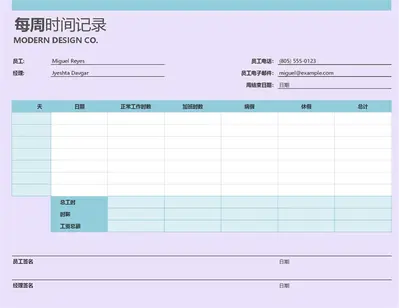
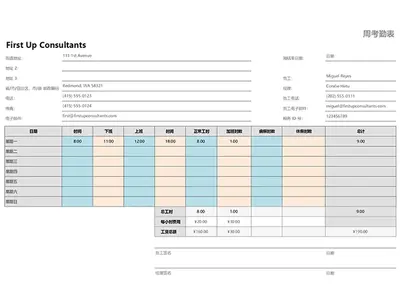
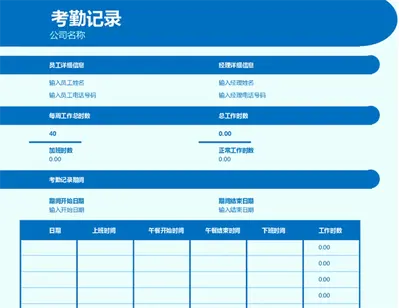
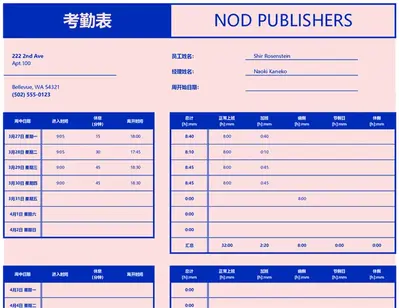
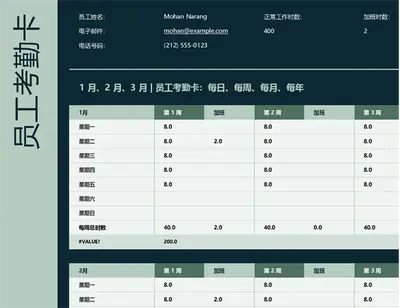
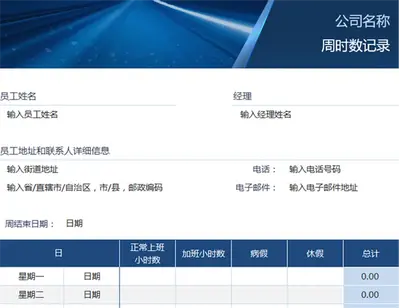
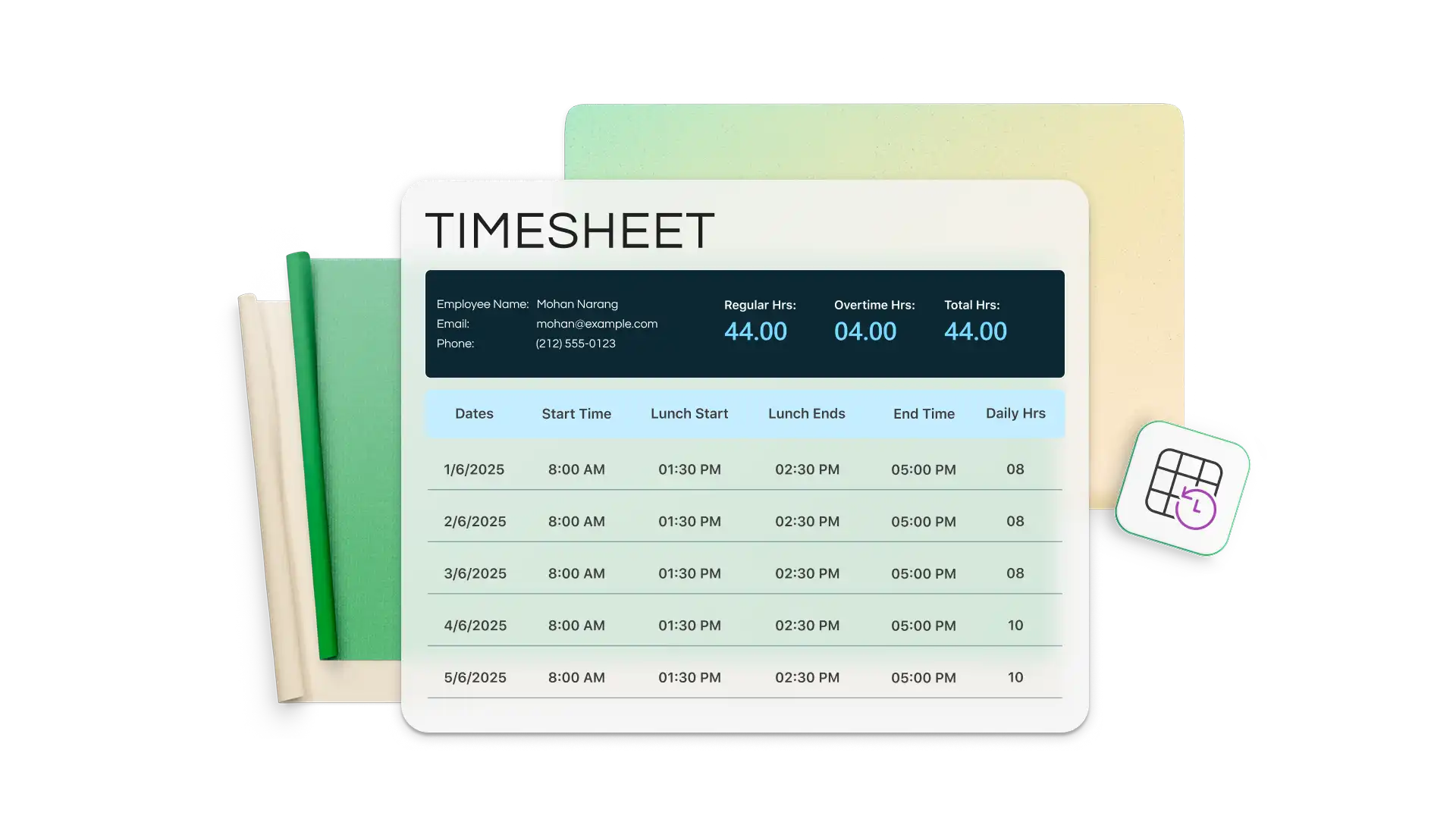
使用专为每日、每周或基于项目的使用而构建的 Excel 时间表模板来跟踪工作时间。使用清晰一致且便于更新和查看的布局来记录工时、休息时间和加班时间。

内置的 Excel 结构和计算功能有助于保持条目的一致性和准确性。使用易于使用的公式自动计算总工时,自信地准备工资单、发票和报告。

单击几下即可调整工作表,以满足不同的跟踪需求,包括按小时、班次或项目时间范围进行跟踪。随着日程安排发生变化,让时间表保持井然有序、包含最新数据且易于管理。
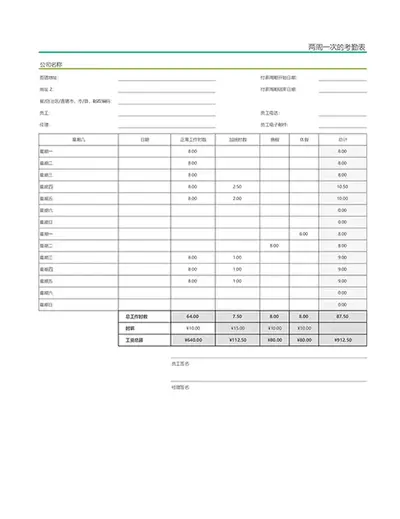
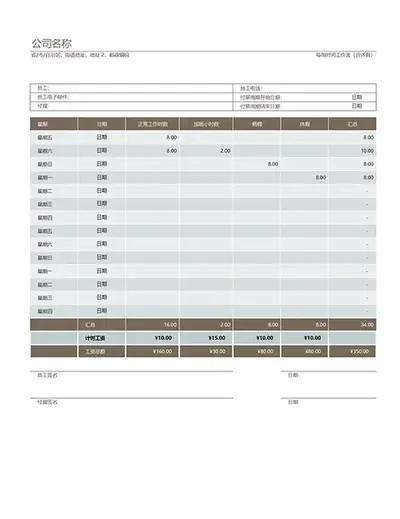
联机查找可自定义的时间表模板,用于记录每日、每周或每月工时,以获得准确的工资单和客户发票金额。发现具有预格式化时间表计算器公式的表格示例,可随时输入数据。
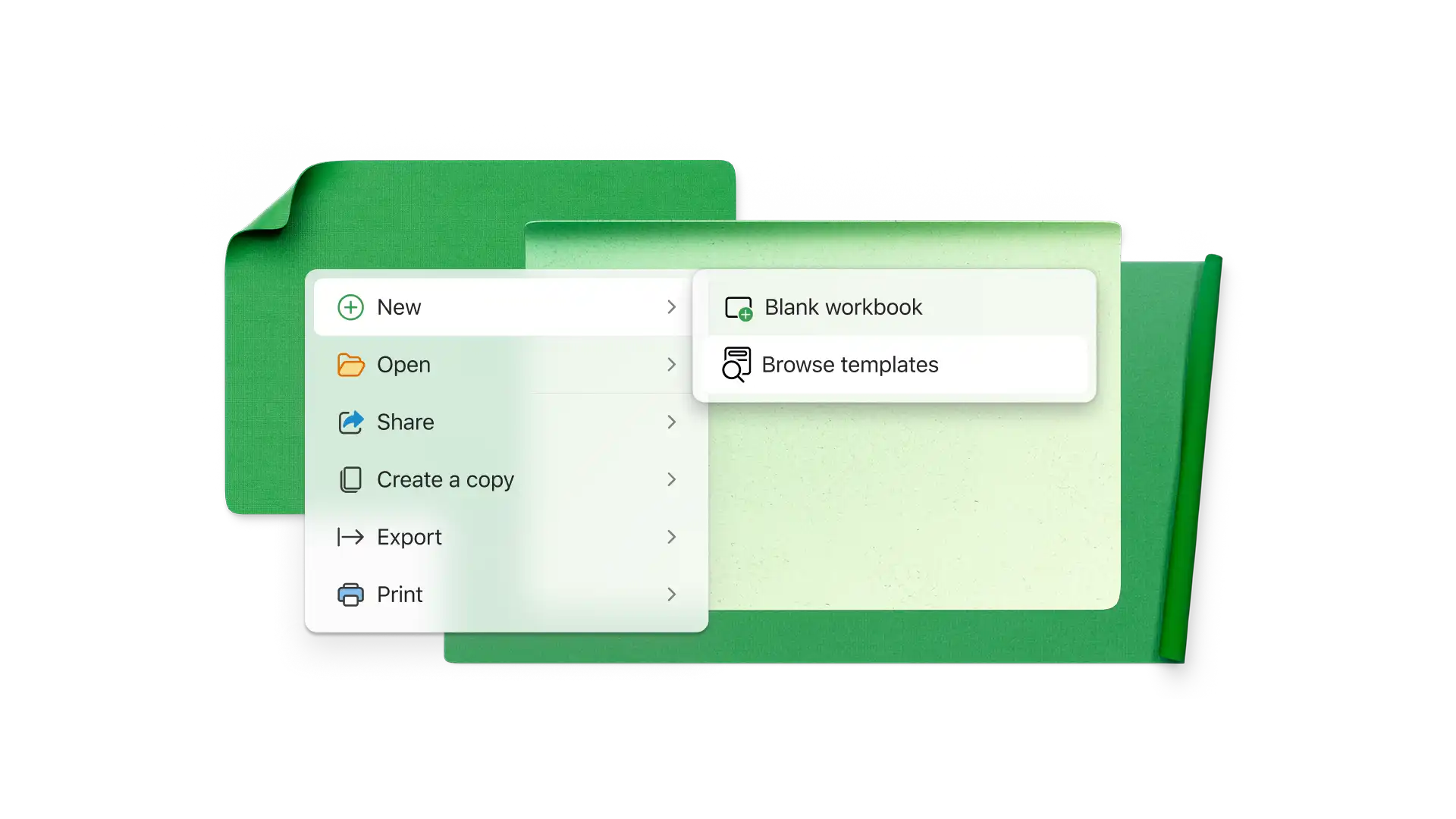
浏览 Excel 网页版中的时间表模板。
双击时间表模板即可开始联机编辑。
使用所需信息替换示例单元格值并个性化命名。
保存、导出为 PDF 时间表或直接通过 Outlook 共享。
使用 Excel 时间表模板跟踪每日、每周、每两周、每月和每年报告时段内的时间。使时间表与付薪期间保持一致,以简化报告,并使用公司品牌信息、徽标、客户名称和项目进行自定义。
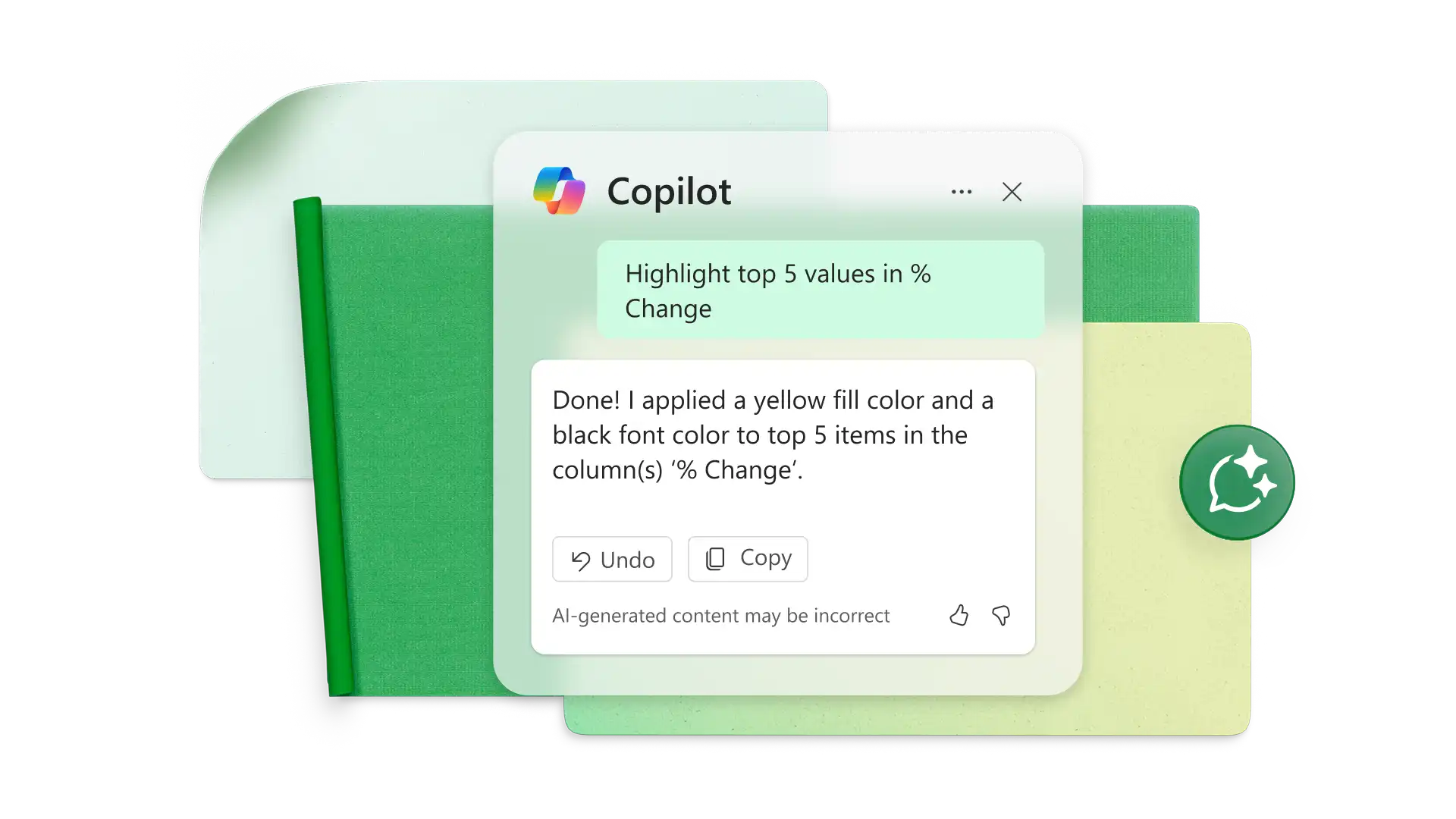
要在 Excel 中计算加班时间,请使用简单的公式从总工作时间中减去标准工作时间。例如,如果超过 8 小时的时间即为加班时间,请使用:=IF(A2>8, A2-8, 0)。如果使用开始时间和结束时间,请先计算总工作时间:=(EndTime-StartTime)*24。然后应用加班时间公式。这会快速显示额外工作时间,便于跟踪加班时间,并用于工资单、时间表或报告。如果仍不确定,请要求 Excel 中的 Copilot 为你计算加班时间。
要计算小时数,请先确保输入单元格采用 Excel 中的时间格式。然后,创建公式,从时钟时间中减去午餐时间和下班打卡时间。将生成的小数乘以 24,以查看当天的工作时间。要更快获得解决方案,请自定义 Excel 时间表模板或复制其公式。
如果时间表按数字计算小时数,则 15 分钟等于 0.25 小时。在这种情况下,0.5 小时是 30 分钟,0.75 小时是 45 分钟。如果使用 Excel,则可以设置单元格的格式以接受时间输入,例如上午 9:00 和下午 5:00。
首先使用每月 Excel 时间表模板,或者复制每周模板,每个电子表格包含五周。如果要从头开始构建每月时间表,请设置日期、上班时间、下班时间、午餐时间和总工时列。创建公式以汇总每天的工作小时数以及每月的总工作小时数。
“每周”时间表可跟踪七天内的工作时间,非常适合密切监视每日工时、加班时间和短期日程安排。“每两周”时间表涵盖两周时间段,可减少管理时间,并与每两周开展一次的薪资核算周期保持一致。“每周”格式提供更频繁的可见数据,而“每两周”格式更适合简化报告和工资单处理。
通过在 Excel Online 中使用基于云的电子表格,可以轻松地与团队共享时间表。共享链接并设置查看或编辑的权限,以便团队成员可以实时更新工时、查看条目或跟踪进度。这可以与出勤表模板配对。